This tutorial assumes you already know what Two-Way Sync is and how to configure it. If not, please review the How to Import data from Google Sheets tutorial first.
1. Choose the Products - Prices template
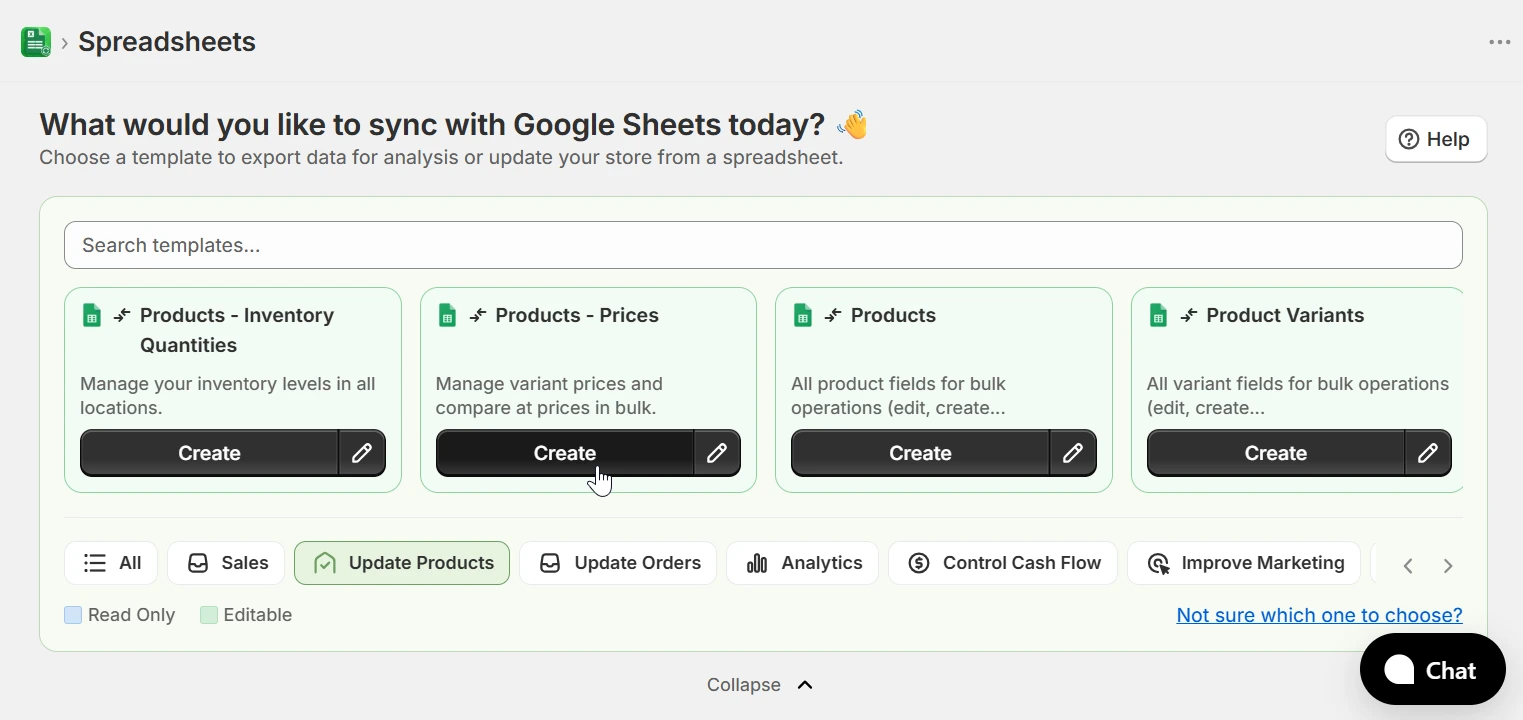
From the home page, select the Update Products category in the template filter bar and click Create on the Products - Prices template. If you are configuring a spreadsheet from scratch, click Configure Spreadsheet, select Two-Way Sync as the sync direction, and then choose the Products - Prices template.
2. Update prices in the spreadsheet
After the first export runs, you will see one row per product variant. Each row includes the variant identifiers and the current Price (Variant) and Compare At Price (Variant) values. Edit the cells for the variants you want to update. The following fields are required and must not be modified:
- Id (Product) - The Shopify product ID. Exported automatically; do not modify it.
- Id (Variant) - The Shopify variant ID. Exported automatically; do not modify it.
Enter prices as plain numbers without currency symbols; for example 29.99. To remove a compare-at price, clear the cell completely. Only rows where you change at least one cell will be processed on import.
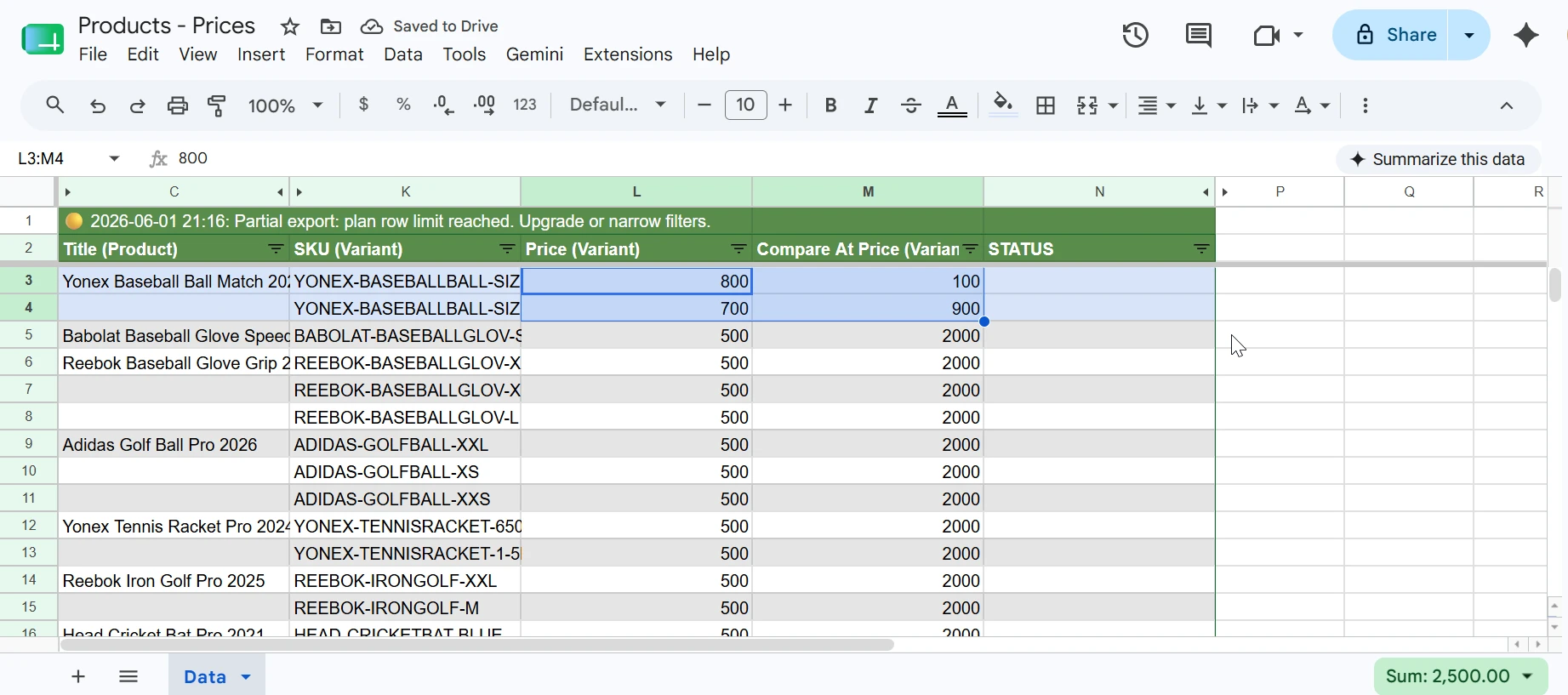
3. Validate and import
Once your prices are set, go back to eCommix and click Sync next to your spreadsheet. In the modal, click Validate first to preview which rows will be updated before anything is sent to Shopify.
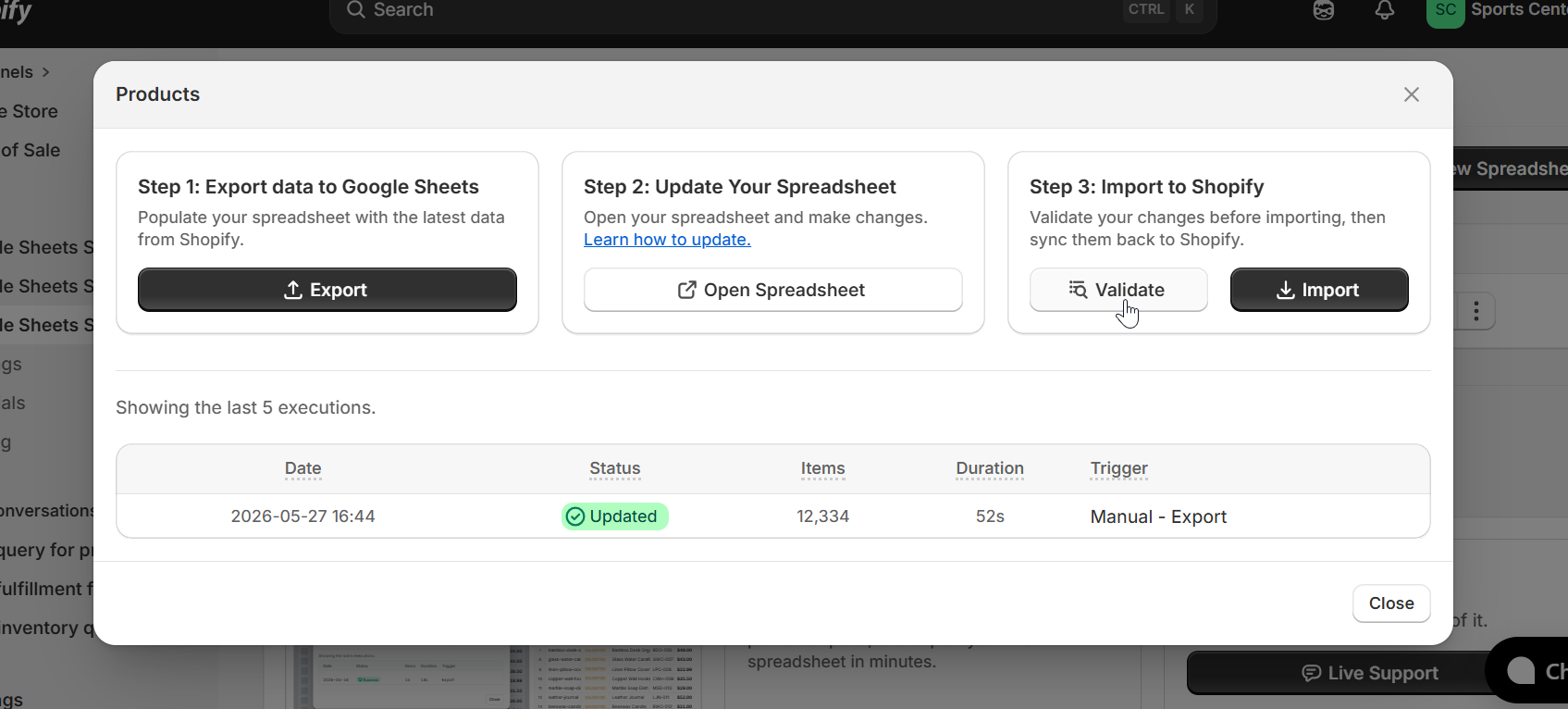
After validation, check the STATUS column in the sheet. Rows ready to import show VALIDATED: Variant will be updated. Click Import to push the changes to Shopify.
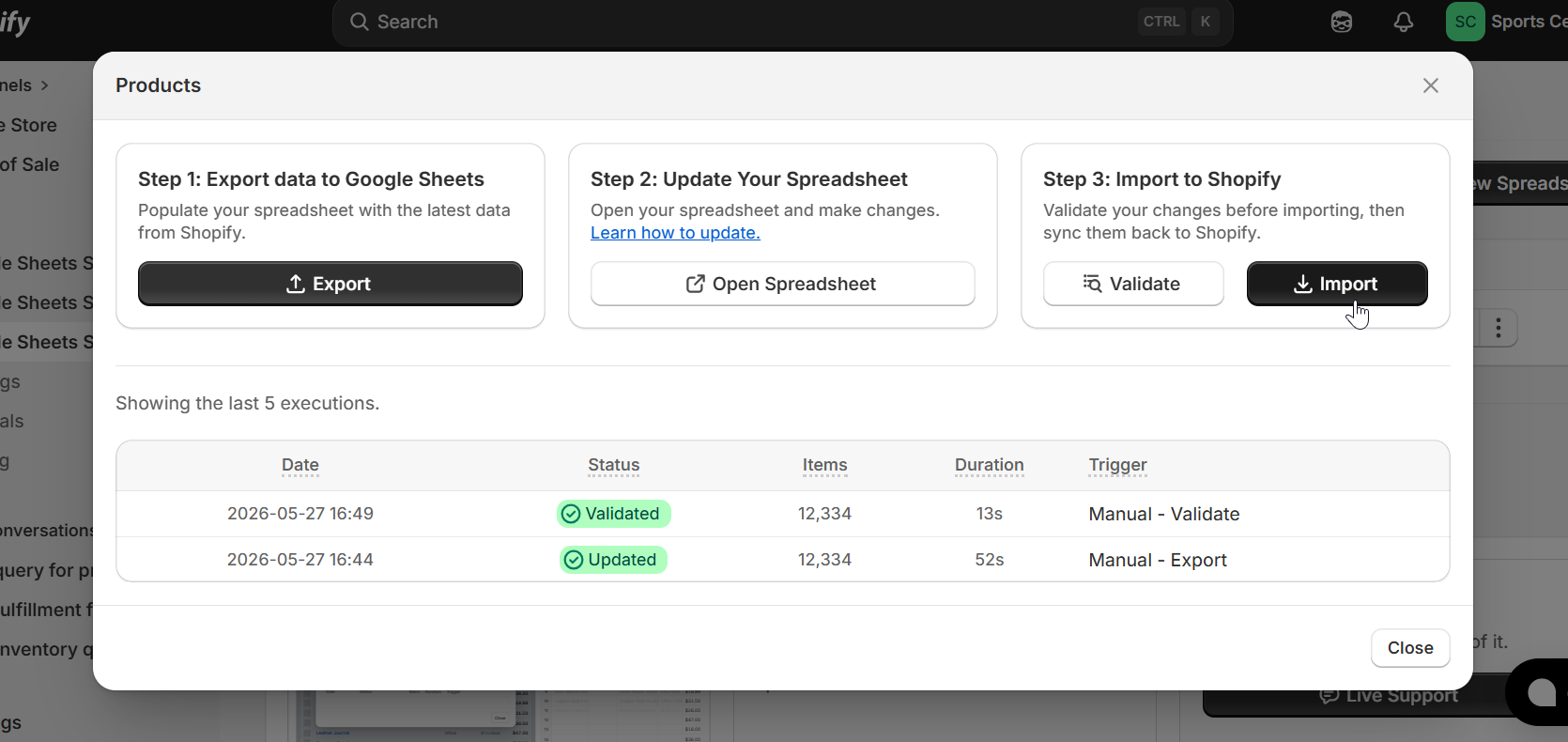
After the import finishes, the STATUS column updates to UPDATED for each successfully saved row. If you are not familiar with the Sync flow, the How to Import data from Google Sheets tutorial walks you through it step by step.
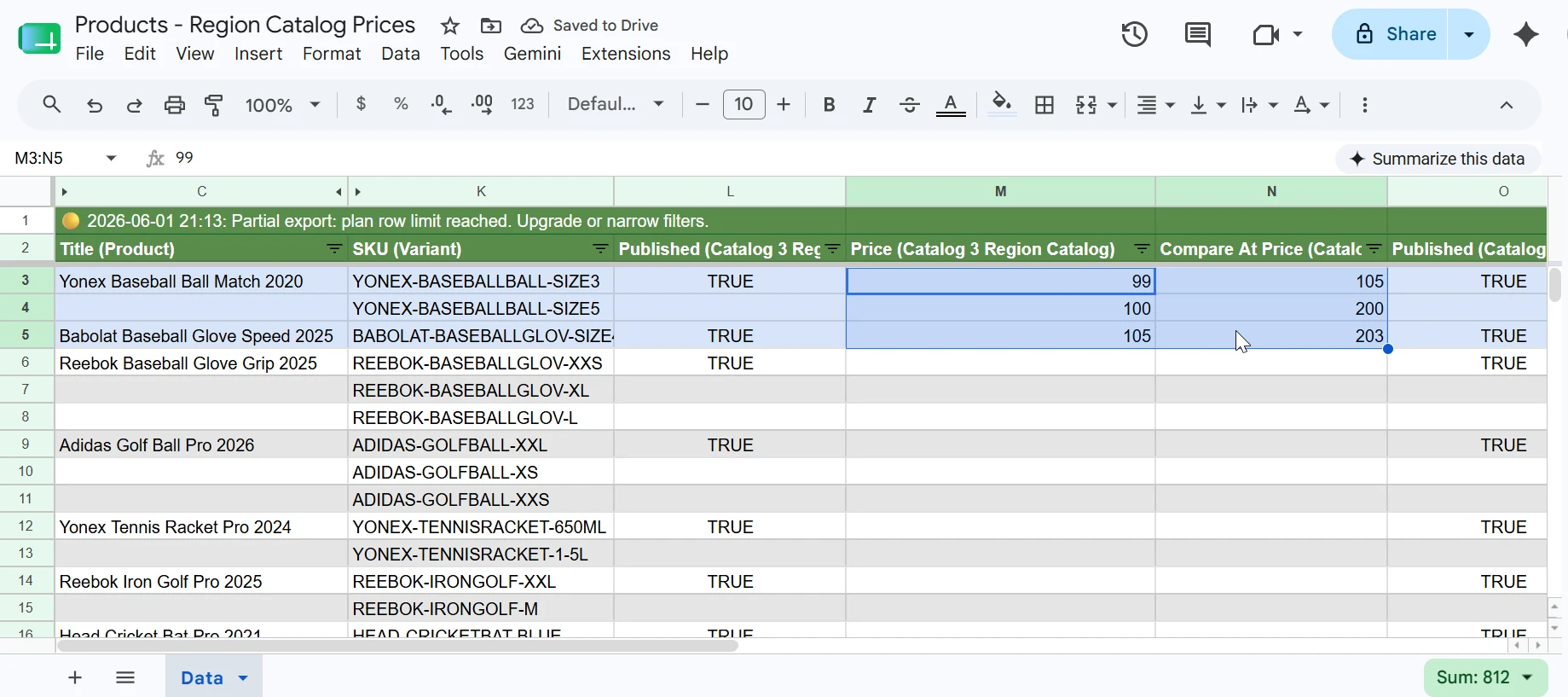
If you sell in multiple markets and need to set different prices per region, see the Updating Region Catalog Prices from Google Sheets tutorial.