Import your supplier's spreadsheet into Shopify as is
No reformatting, no Shopify CSV template, no copy-paste. Point eCommix at the file your supplier sent you and it matches their column names to Shopify fields for you - then creates and updates your products by SKU, handle, or barcode.
Free plan available
Your spreadsheet, your columns, your store
eCommix reads a spreadsheet you already have and writes the data into your Shopify store - it never asks you to rebuild the file first.
Whatever your supplier calls it, map it to Shopify
Every column in their file points at a Shopify field of your choosing. Anything you leave unmapped is simply ignored.
Handle, title, description, vendor, category, tags, collections, status, and SEO
Option values, SKU, barcode, price, compare-at price, and weight
Stock quantities per location, straight from the supplier's count
Image URLs with alt text - several images per product, plus variant images
Your custom fields, mapped from whatever the supplier calls them
Start from the file your supplier sent you
There is no template to pick and no sheet for eCommix to create. Choose One-Way: Import and point it at the spreadsheet you already have - a supplier catalog, a price list, a stock count, or an export from another system. Your columns are the starting point; nothing gets reformatted to fit ours.
Import your spreadsheet into Shopify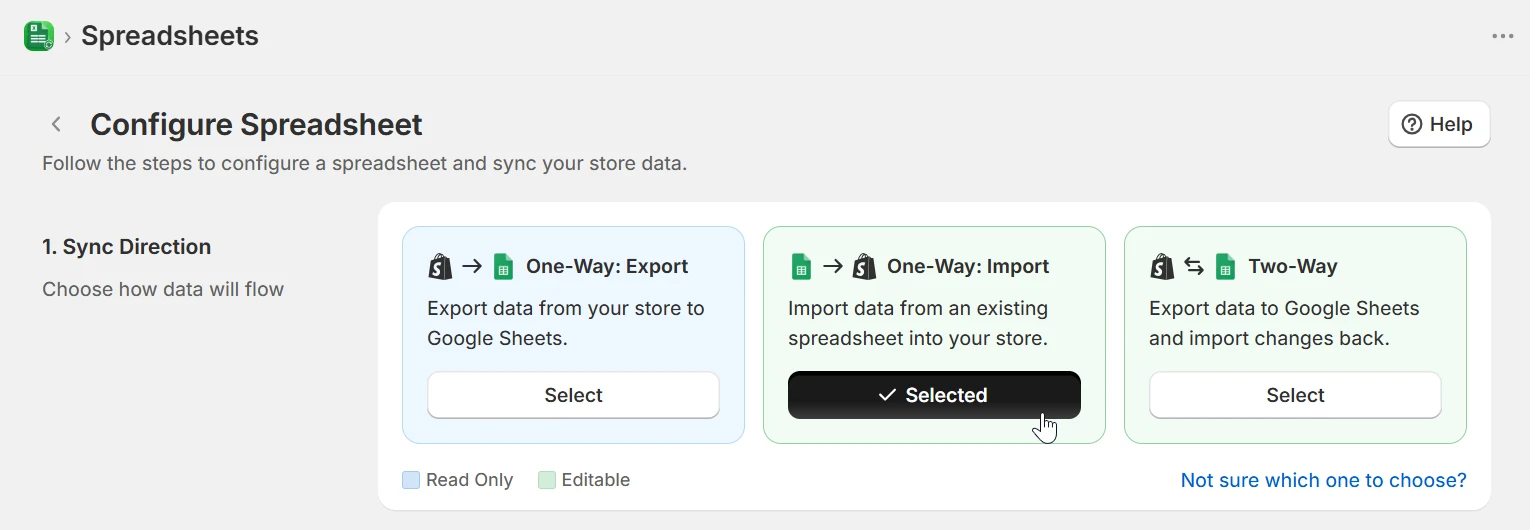
Point eCommix at the sheet - Drive or a shared link
Pick the spreadsheet from Google Drive with one of your connected Google accounts, or paste a public link your supplier shared with you. Choose the tab to read, and eCommix fills in the rest automatically. Row 1 is your header row - everything below it is data.
Import your spreadsheet into Shopify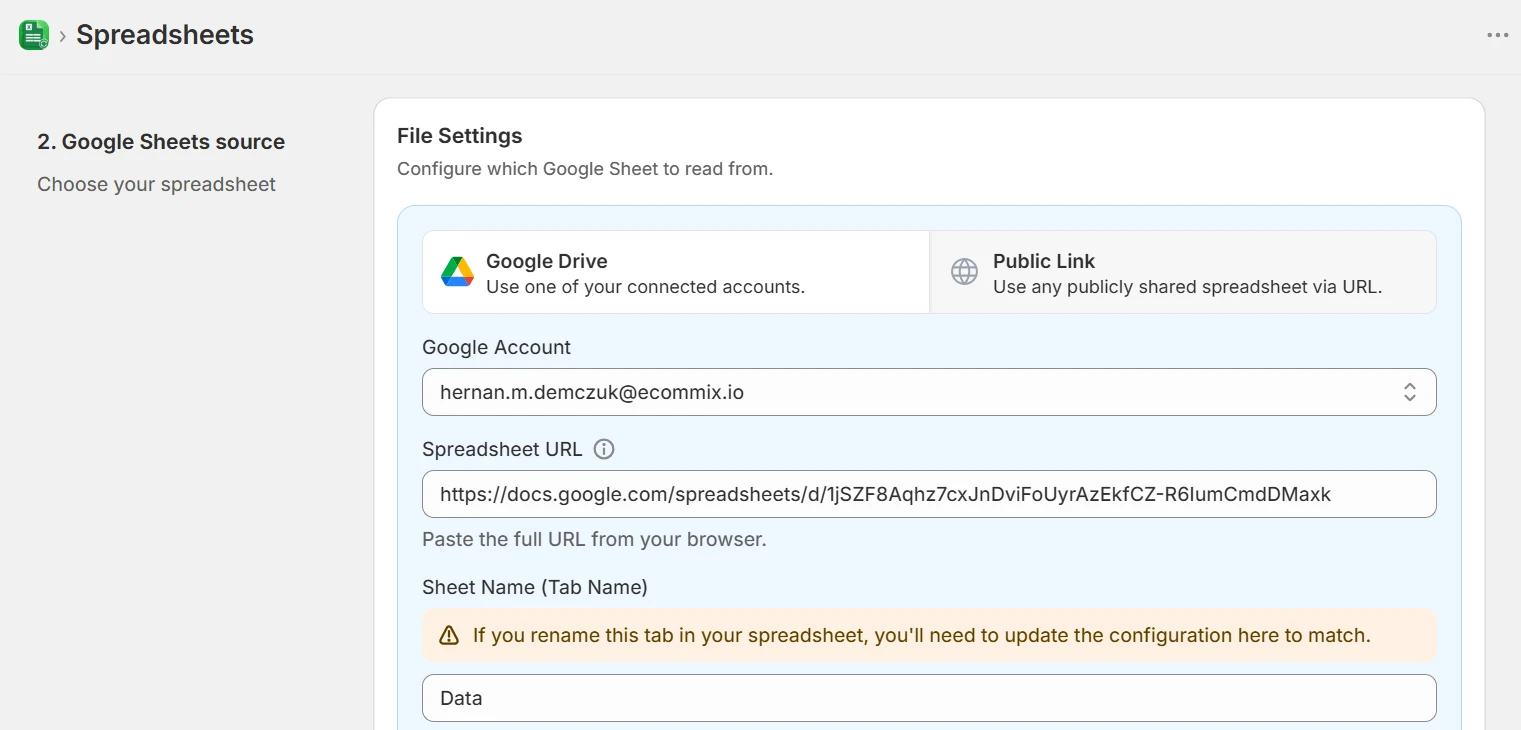
eCommix matches your columns to Shopify fields
Click "Map automatically" and eCommix reads your header names and matches them to the Shopify fields they correspond to - "Item Code" to SKU, "RRP" to price, "Description" to body HTML. You review what it inferred and fill in only what it could not work out.
Import your spreadsheet into Shopify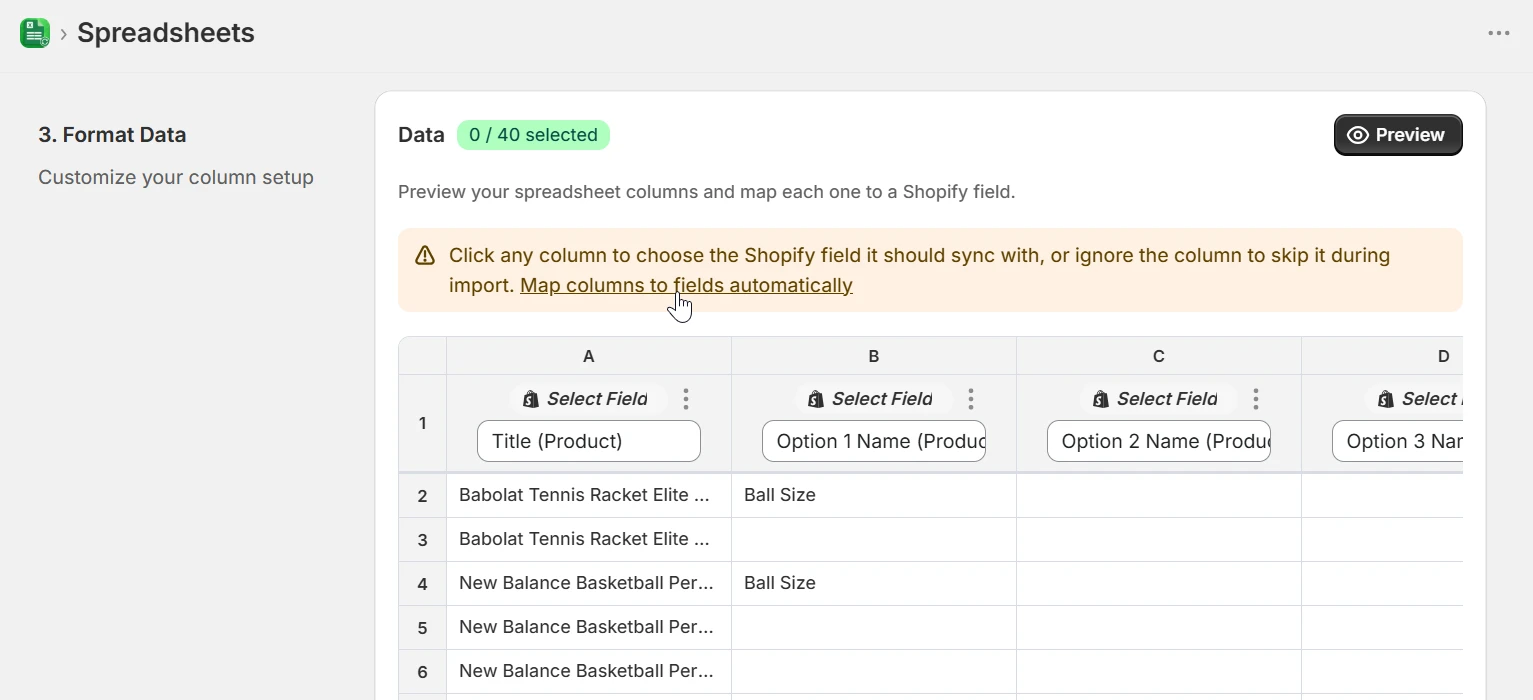
See your real data before anything is imported
The preview shows your own columns with the first ten rows of real supplier data, so you can see exactly what each mapping will do. Click any column to change the Shopify field it feeds - your original header stays visible underneath, so you never lose track of which column is which.
Import your spreadsheet into Shopify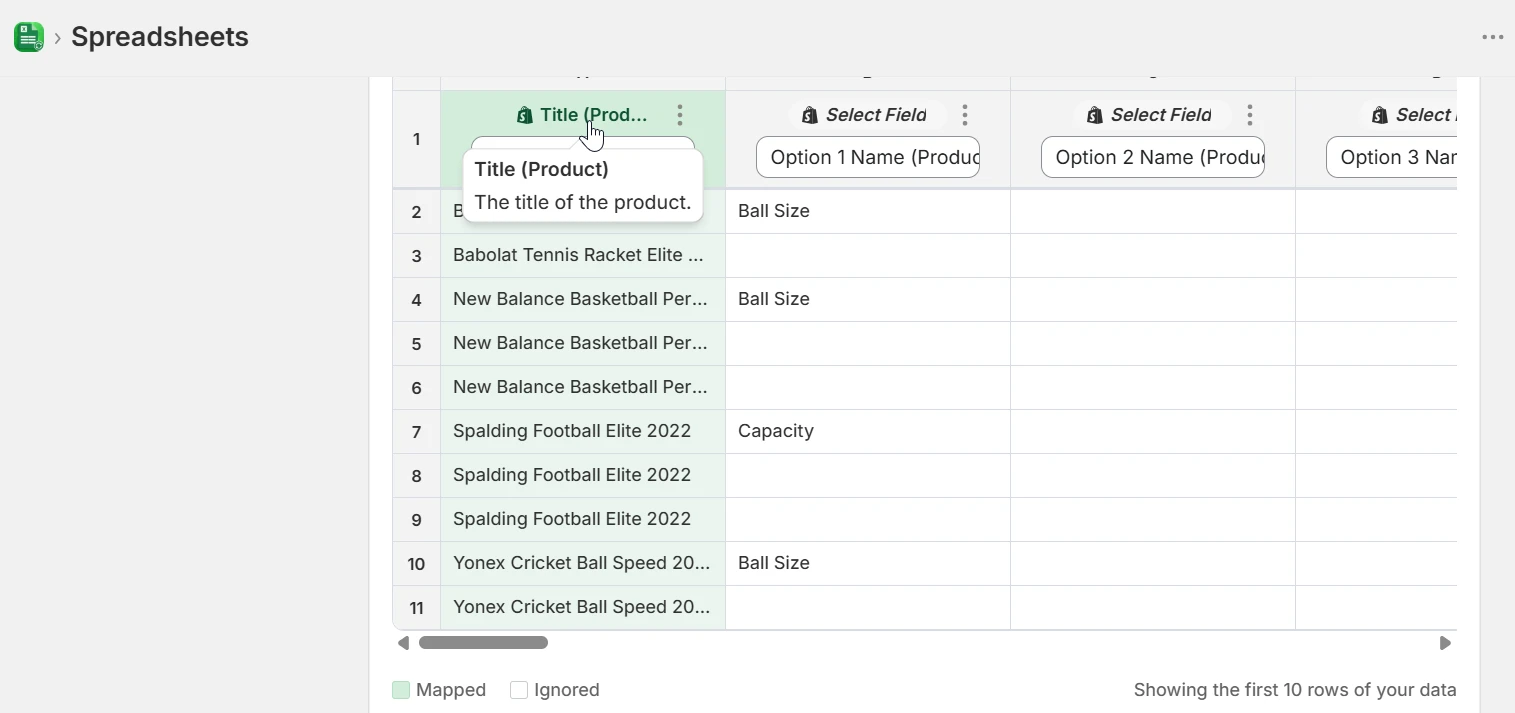
Every Shopify field is on the menu
Fields are grouped by resource - Product, Variant, Inventory, metafields - with a search box to jump straight to the one you need. Columns you do not want to import are left unmapped or set to Ignore Column, so the supplier's notes, formulas, and working columns are never touched.
Import your spreadsheet into Shopify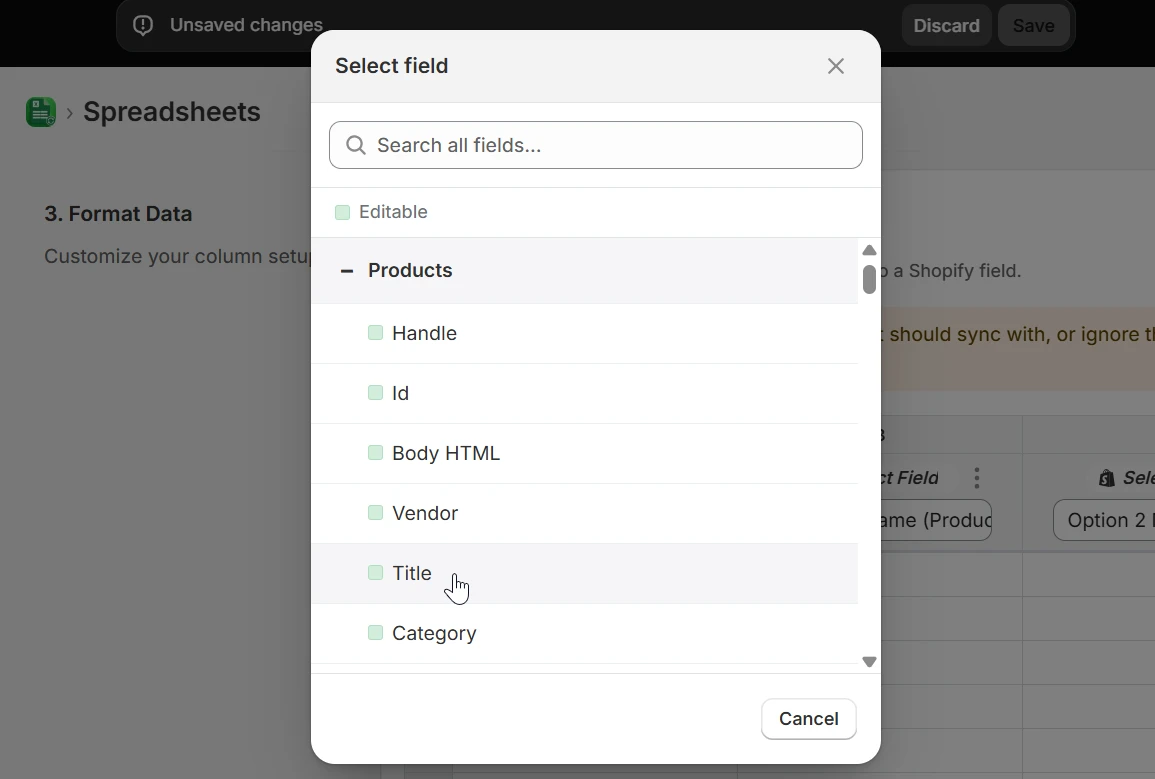
Validate first - a dry run that changes nothing
Before a single product reaches your store, click Validate. eCommix checks every row against Shopify and writes the outcome into a SYNC STATUS column in your sheet: what will be created, what will be updated, and which rows have a problem to fix. It is read-only, so you can run it as many times as you like.
Import your spreadsheet into Shopify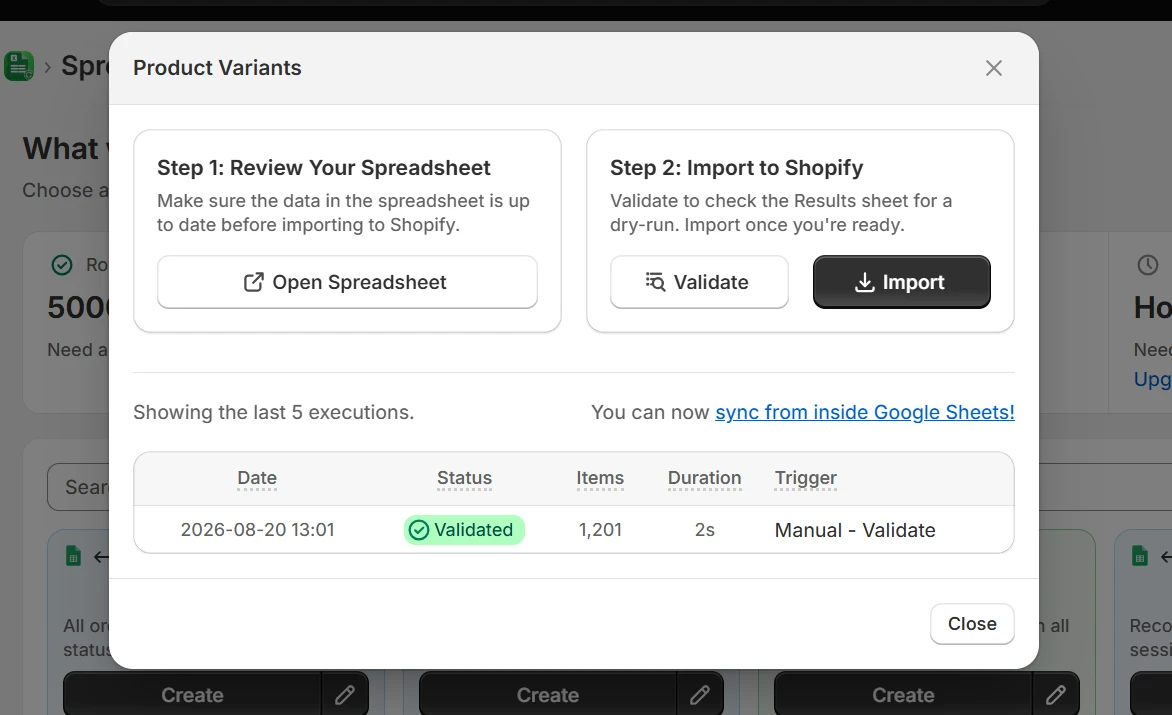
Import, and read the result row by row
When the validation looks right, hit Import. eCommix writes the data into Shopify and updates the SYNC STATUS column again - rows show CREATED or UPDATED, so you can confirm at a glance which products are live and follow up on anything that errored. It only ever creates and updates; it never deletes.
Import your spreadsheet into Shopify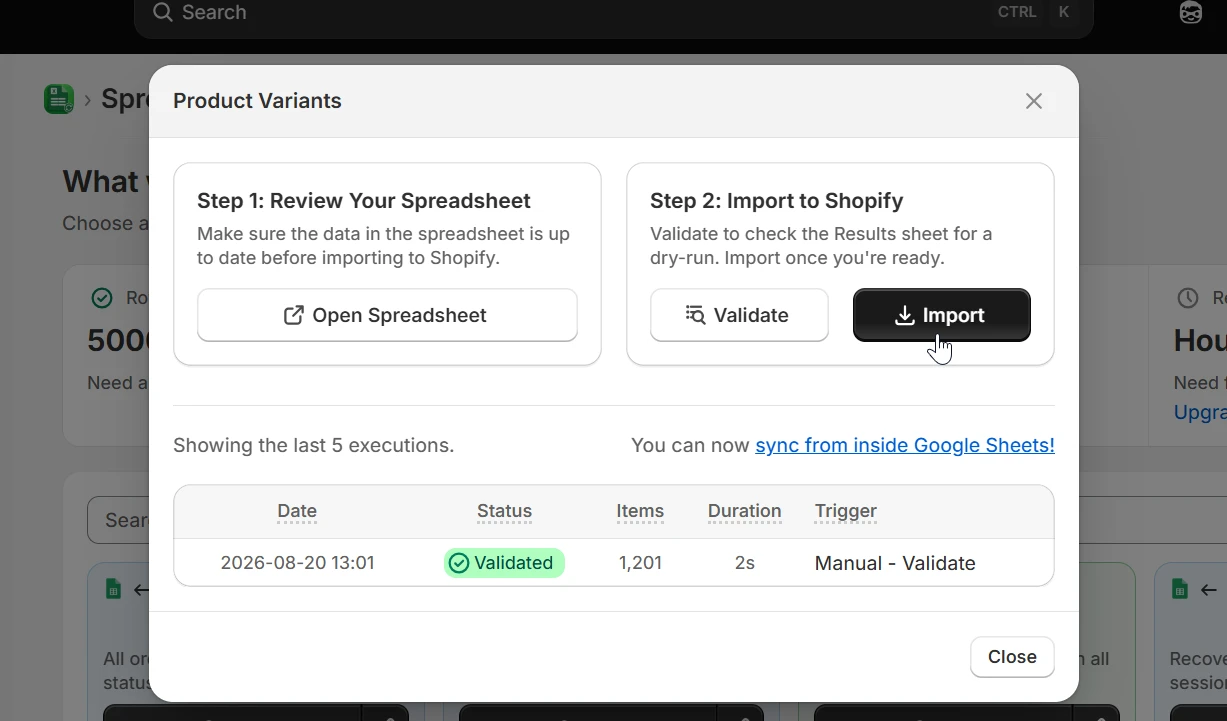
Run it on a schedule when the supplier updates the file
If your supplier keeps the same sheet up to date, switch automatic refresh on and pick the cadence - every few minutes, hourly, daily, or weekly. eCommix re-reads the file and applies the changes on schedule. Turn it on once a manual validate and import have given you the results you expect.
Import your spreadsheet into Shopify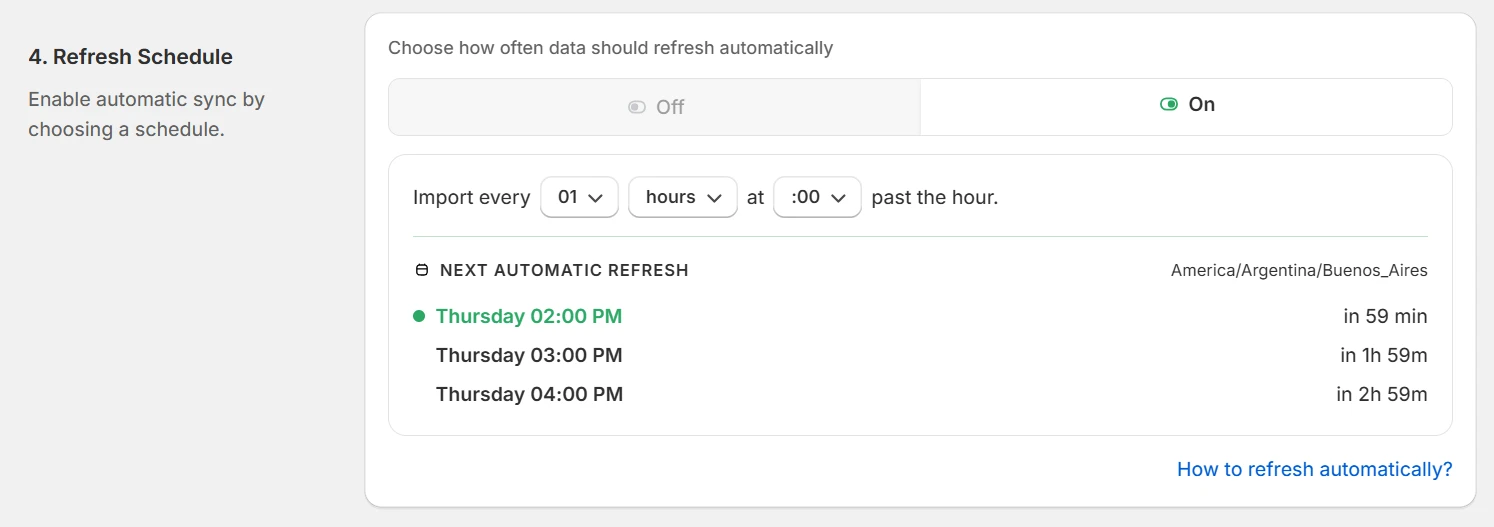
Or run it from inside Google Sheets
With the eCommix Sheets Add-On you never have to leave the spreadsheet. Validate and Import sit in the sidebar next to your supplier's data, and the add-on points you at the SYNC STATUS column the moment a run finishes.
Import your spreadsheet into Shopify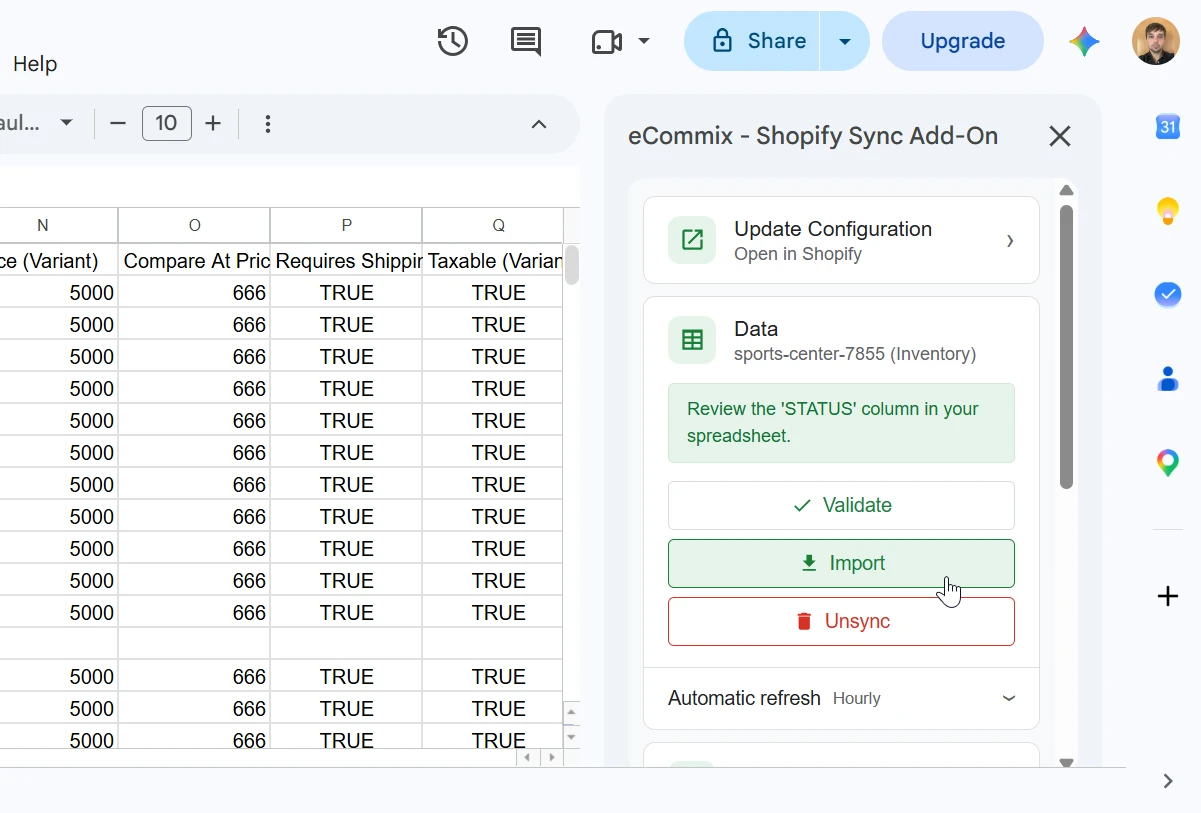
How eCommix matches a supplier row to your product
A supplier file almost never carries Shopify IDs. It does not have to - eCommix resolves each row against your catalog using the identifiers the file already has.
SKU
The most common key in a supplier price list - matched against your variants.
Barcode
UPC, EAN, or GTIN columns resolve straight to the variant that carries them.
Handle
The safest product-level identifier when your catalog already uses handles.
Title
A fallback when nothing else is available, with safeguards on ambiguous matches.
If a row matches an existing record it is updated; if nothing matches, the product is created. That is what makes re-running an import safe - the second run finds what the first one created and updates it instead of duplicating it. Read the full import guide →
Where merchants use it
Anywhere your product data starts life in someone else's spreadsheet.
New supplier catalog
A supplier sends a 900-row product list with their own column names. Map it once, import, and the whole catalog lands in Shopify with images, variants, and prices - no CSV template to fill in by hand.
Recurring price lists
The same supplier sends an updated price list every month. Keep the mapping, drop in the new file, and eCommix matches each row by SKU and updates the price on the variant that already exists.
Dropshipping stock feeds
Your dropshipper maintains a live stock sheet. Point eCommix at it, set an hourly refresh, and your Shopify inventory follows their counts without anyone touching a spreadsheet.
Migrating from another platform
An export from WooCommerce, Magento, or an ERP does not match Shopify's CSV format. It does not need to - map the columns it does have and import them as they are.
Wholesale and B2B catalogs
Import a wholesaler's assortment with your own margins applied in a Sheets formula column. Map the calculated column to price and leave the working columns unmapped.
Bulk metafield loads
Spec sheets, materials, country of origin, care instructions - whatever the supplier tracks in extra columns, map it to your Shopify metafields and load it in the same run.
Frequently asked questions
Do I have to reformat my supplier's spreadsheet to a Shopify CSV template?
No. That is the whole point of One-Way Import - it works from your spreadsheet's own header row. You map each of your columns to the Shopify field it corresponds to, so a sheet built by a supplier or exported from another system imports as it is.
How does eCommix know which columns are which?
Click "Map automatically" and eCommix matches your header names against Shopify fields and fills in everything it can infer. You then correct or fill in only the columns it could not work out. You can also map every column by hand if you prefer.
My supplier's sheet has no Shopify IDs. Will it create duplicates?
No. One-Way Import can match a row by Handle, Title, SKU, or Barcode as well as by Id - so a price list keyed only on SKU updates the right variants. Re-running the same import resolves the same identifiers, finds the records it created the first time, and updates them instead of duplicating them.
Can I import products, variants, inventory, and images in the same sheet?
Yes. Fields are grouped by resource, so one row can carry product-level columns, variant columns, inventory quantities, and image URLs at once. Variant rows are grouped under a shared product the same way they are in Two-Way Sync.
What happens to columns I do not map?
They are neither read nor written, so the supplier's notes, formulas, and internal working columns stay exactly as they are. One caveat: eCommix appends a SYNC STATUS column immediately after your last column, so give any working column there a header and it will be counted as one of yours.
Does importing change my spreadsheet?
Your data columns are only read, never rewritten. The single thing eCommix writes back is the SYNC STATUS column, so you can see the result of every row after validating or importing. It reuses an existing SYNC STATUS column if your sheet already has one, and never touches a Status column of your own.
Can an import delete products or clear fields?
No. One-Way Import only creates and updates. Removing a row from the sheet does not delete anything in Shopify, and a blank cell means “no value supplied” rather than “clear this field”. Deletions belong in the Shopify admin.
Can my headers start below row 1?
No. Row 1 of the tab is always read as the header row. Delete any title banners, logos, or spacer rows a supplier put above the headers before you configure the spreadsheet, otherwise eCommix reads that decorative row as your column names.
How many rows can I import at once?
The row limit depends on your plan: 20 on Free, 200 on Bronze, 1,000 on Silver, and unlimited on Gold. The limit applies to a single run rather than to your catalog, so a larger file can be imported in batches. The check runs before anything is written, so an over-limit sheet fails cleanly.
Does the sheet have to live in my Google Drive?
No. You can pick it from Drive with a connected Google account, or paste a public link. For a public link the spreadsheet must be shared as “Anyone with the link” with Editor permissions, so eCommix can write the SYNC STATUS column back.
Stop rebuilding supplier files by hand
Free plan available. Works with any Shopify store.
Import your spreadsheet into Shopify