Bulk edit Shopify prices in Google Sheets
Export prices, compare-at prices, and region catalog overrides to a single spreadsheet. Apply formulas, edit in bulk, and sync every change back to Shopify in one click.
Free plan available
See it in action
Every pricing field. Editable in bulk.
Base prices, compare-at prices, and per-catalog overrides - all in one sheet, all editable at once.
The sale price shown to customers at checkout
The original price shown as strikethrough on the storefront
Your cost of goods - use it to write margin-aware formulas
Per-catalog override prices for B2B, wholesale, or market segments
Strikethrough pricing per region catalog
Control which products are visible in each region catalog
Select the Prices template and export in one click
Open eCommix and choose "Products - Prices" from the Update Products category. Your entire catalog - SKU, Price, Compare At Price, and any region catalog prices - lands in Google Sheets in seconds. Every variant on one screen.
Bulk edit prices from Google Sheets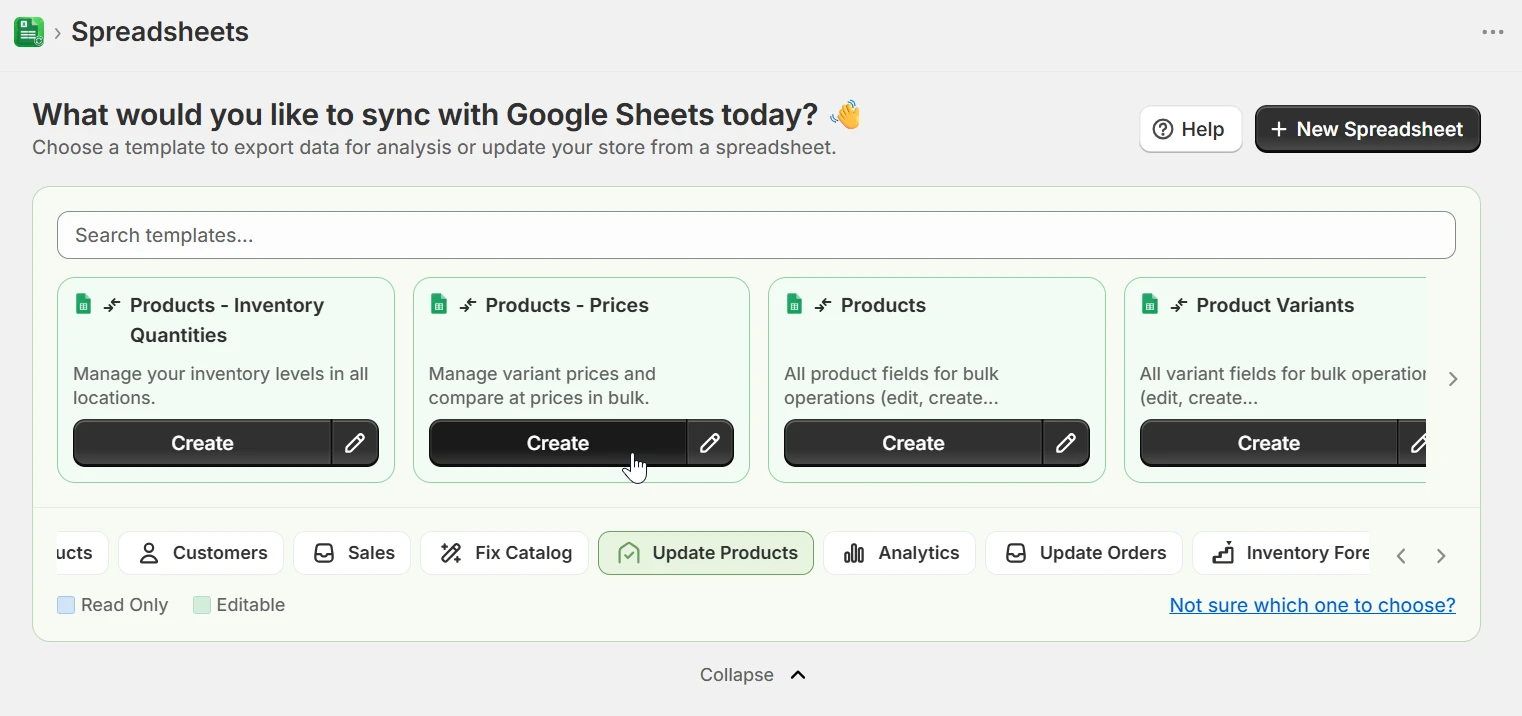
Filter by vendor, collection, type, or category
Before exporting, scope your sheet to exactly the products you need. Filter by Vendor, Collections, Type, Category, Tags, or any other product field. Only matching products land in the sheet - keeping it focused and making bulk formulas easier to apply without touching the wrong SKUs.
Bulk edit prices from Google Sheets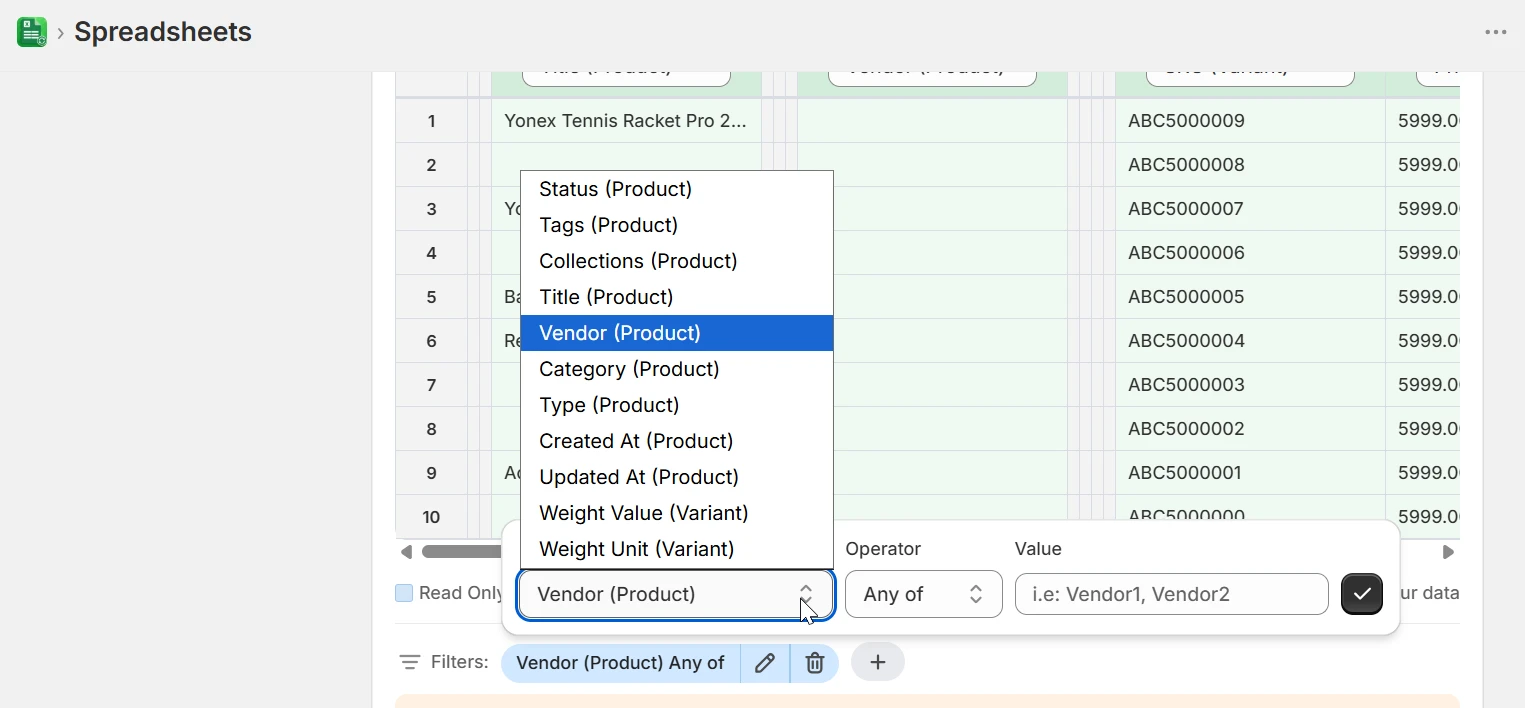
Edit prices and region catalog overrides side by side
The sheet shows your base price and compare-at price next to each region catalog column. Type new values, paste from a supplier sheet, or write a formula - =C3*1.2 to apply a 20% markup across a column. Every catalog is editable in the same row, no switching between views.
Bulk edit prices from Google Sheets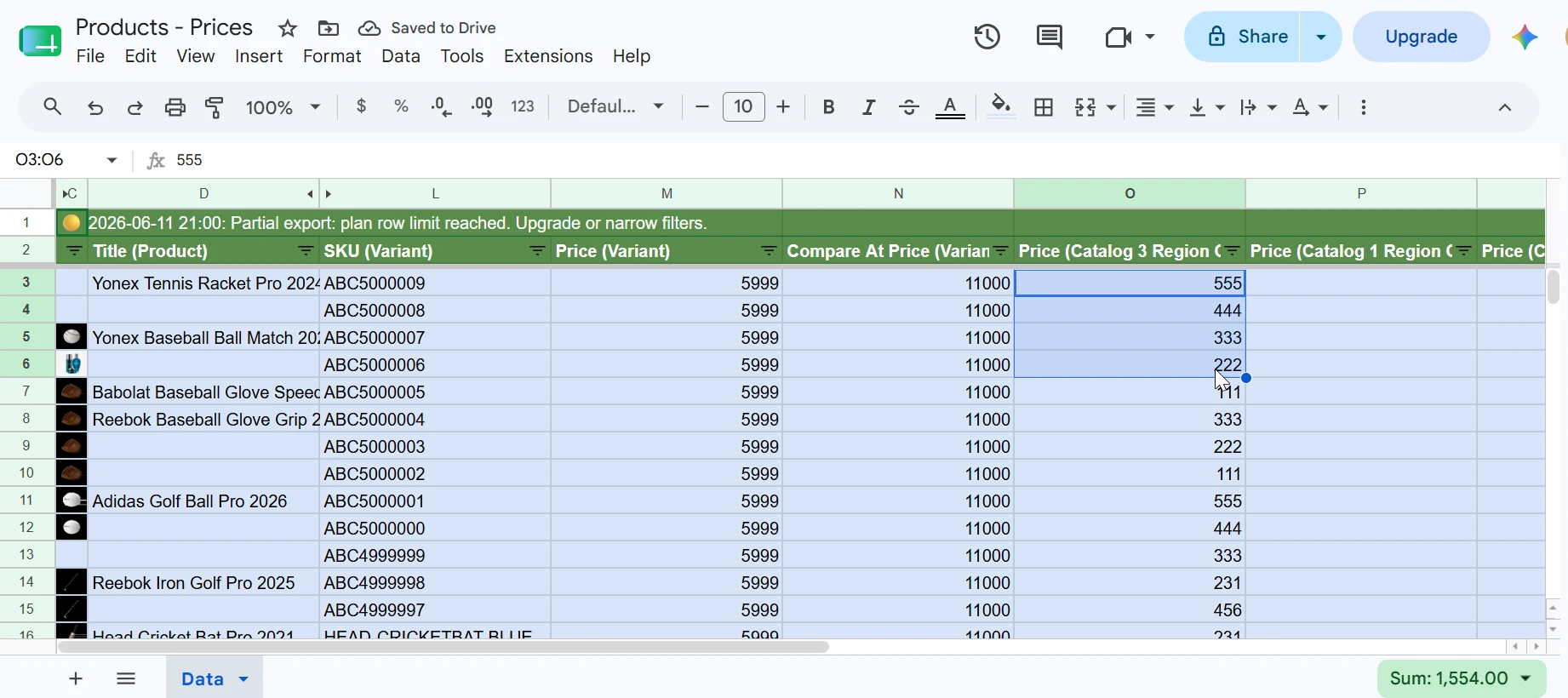
Add region catalogs to any price sheet
In Manage Columns, each region catalog appears as its own group with Published, Price, and Compare At Price fields. Tick the catalogs you need - B2B, wholesale, regional markets - and they become editable columns in your sheet alongside the base price. Update all pricing tiers in one import.
Bulk edit prices from Google Sheets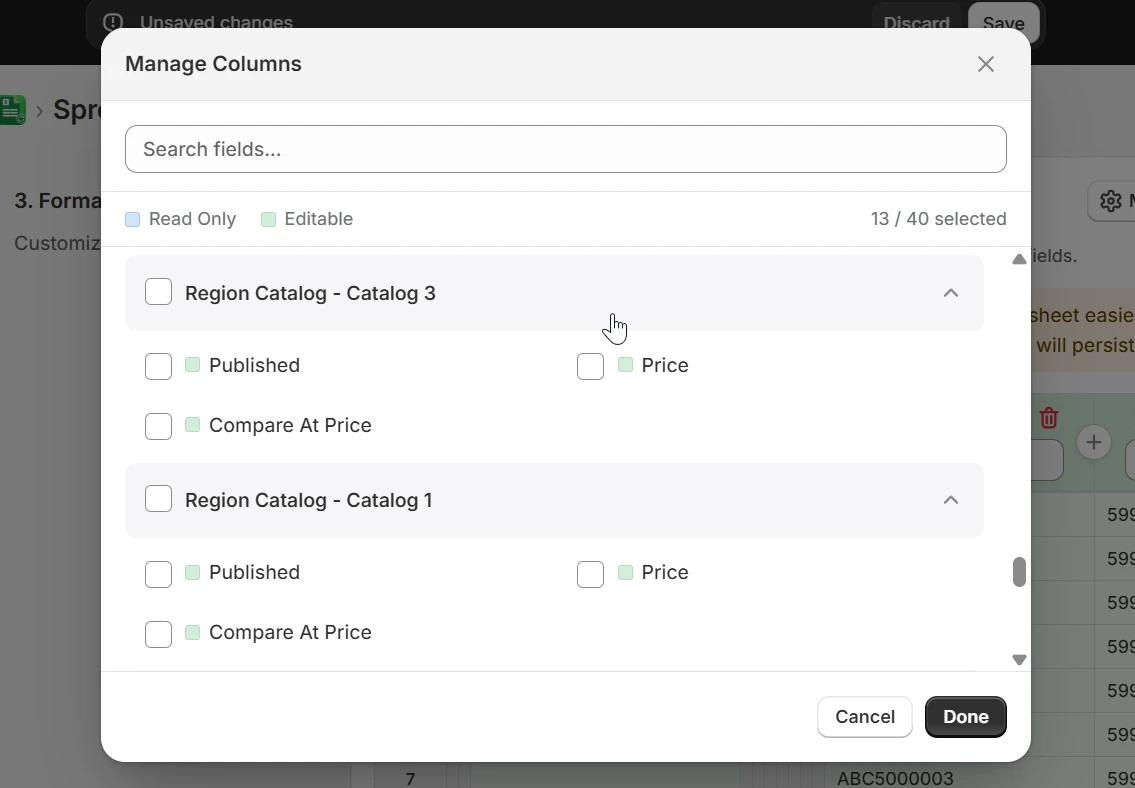
Validate and sync back to Shopify
Return to eCommix, hit Export to pull the latest prices, make your changes in the sheet, then Import. eCommix validates every row before writing anything and pushes only the rows that changed. Base prices, compare-at prices, and all region catalog overrides sync in a single import.
Bulk edit prices from Google Sheets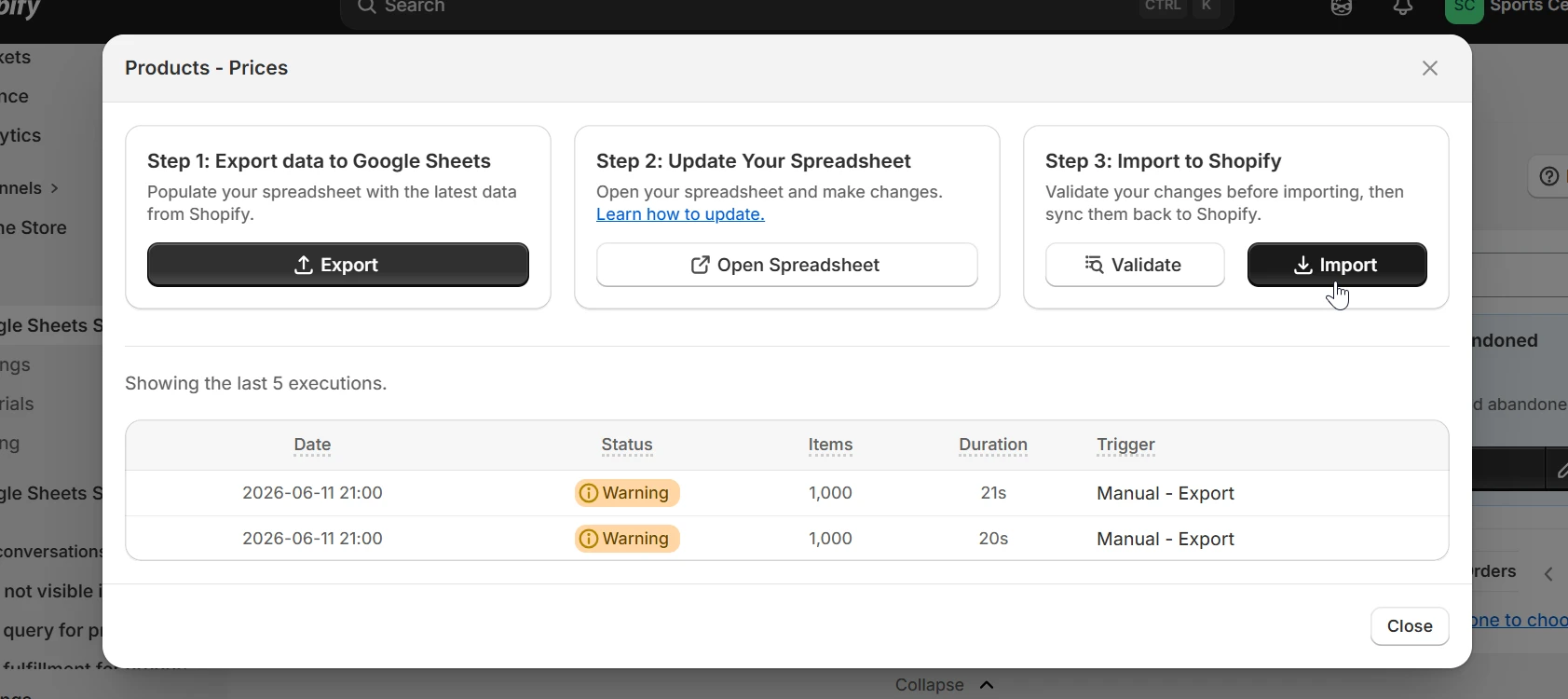
When to bulk-edit prices
Any time repricing more than a handful of products in the Shopify admin would take too long.
Seasonal sale rollout
Set compare-at prices to the original values and drop the sale prices across your whole catalog. Use a Sheets formula to apply the discount percentage in one column, review the diff, and import. No clicking through individual products.
Supplier cost increase
Paste the new cost column from your supplier's file, write a margin formula against it, and bulk-update prices before the new stock lands. Catch any SKUs where margin would go negative before they go live.
B2B or wholesale pricing
Use a region catalog to set a separate price tier for wholesale customers. Update base price and catalog price in the same sheet, import once. The storefront shows each customer the right price automatically.
Market-specific pricing
Shopify region catalogs let you set different prices for different countries or markets. Export the catalog columns for your target markets, adjust for currency, tax, or local competition, and sync all markets in one go.
Post-sale price restoration
After a promotion ends, re-import the original sheet to restore all prices and clear compare-at values. Keep a copy of the pre-sale export and you have a one-click rollback.
New product line pricing
When onboarding a new supplier or product line, set prices and compare-at prices for every variant before publishing. Review the full set in the sheet before any product goes live.
Bulk pricing formulas that do the work
Your prices and costs are in a spreadsheet, so repricing is a formula rather than a thousand clicks. Column B is Price, column D is Cost Per Item.
Raise every price by 10%
=ROUND(B2*1.1, 2)Apply to a spare column, check the results, then paste the values back over the Price column. ROUND keeps you from importing prices like 24.203999.
Discount 20% and keep the original as compare-at
=ROUND(B2*0.8, 2)Copy the current Price column into Compare At Price first, then apply the discount to Price. The storefront shows the old value struck through.
Price from cost at a 40% margin
=ROUND(D2/(1-0.4), 2)D is Cost Per Item. Margin is calculated on the sale price, not the cost - dividing by (1-margin) is what gives a true 40% margin rather than a 40% markup.
Price from cost at a 40% markup
=ROUND(D2*1.4, 2)Markup multiplies the cost directly. On a $10 cost this gives $14.00, where the 40% margin formula above gives $16.67 - the difference matters at scale.
End every price in .99
=INT(B2)+0.99Charm pricing across a whole catalog. Combine with a markup formula to reprice and round in one column.
Flag negative margin before importing
=IF(B2<=D2, "LOSS", "")Run this after any bulk change. Sort by the flag column and fix the losses before you import - the sheet is the last place these are cheap to catch.
Formulas calculate in the sheet; eCommix imports the resulting values. Paste formula output as values over the Price column before importing, and keep a copy of the original column so a rollback is one paste away.
Frequently asked questions
Can I update compare-at prices in bulk?
Yes. The Products - Prices template exports both Price and Compare At Price for every variant. Edit both in the sheet and they sync together in one import.
How do I apply a percentage price increase across my catalog?
Export the Products - Prices template, then in a spare column write =ROUND(B2*1.1, 2) to add 10% (B is the Price column). Fill the formula down, check the results, then paste the values back over the Price column and import. Always wrap the formula in ROUND to two decimals - without it you can import prices like 24.203999.
How is this different from editing prices with a Shopify CSV export?
A Shopify CSV export is a one-off file: you download it, edit it, and re-upload the whole thing, which rewrites every row including ones you never touched and gives you no preview of what will change. eCommix keeps the same spreadsheet connected to your store - you re-export to refresh it, and on import only the cells you actually edited are written back. You also get compare-at prices, cost per item, and region catalog columns in the same sheet, and Google Sheets formulas work directly against them.
Can I schedule prices to change automatically at a set time?
No. eCommix does not schedule a future price change - imports run when you trigger them. You can schedule the export side (hourly, daily, or weekly, with 10 minutes as the shortest interval on the Gold plan) so the sheet always reflects current prices, but the write back to Shopify is an action you take. For a timed sale, prepare the sheet in advance and import it when the sale starts.
How do I roll back a bulk price change?
Before importing, duplicate the sheet or the Price column so you keep the pre-change values. To revert, paste those values back and import again. Because eCommix writes only changed cells, the rollback import touches only the rows that were actually modified. There is no automatic undo, so the copy you keep beforehand is what makes a rollback possible.
What is the difference between margin and markup when repricing?
Markup multiplies the cost (=Cost*1.4 gives $14.00 on a $10 item). Margin is a share of the sale price, so a true 40% margin is =Cost/(1-0.4), which gives $16.67 on the same item. Mixing the two up is the most common bulk-repricing mistake, and it silently underprices an entire catalog. Cost Per Item exports alongside Price, so you can check either calculation in the sheet before importing.
What are region catalogs and how do they work?
Region catalogs are Shopify's way to set different prices for different customer groups or markets - for example B2B customers, wholesale buyers, or specific countries. eCommix adds one column group per catalog (Published, Price, Compare At Price) so you can update all pricing tiers in the same sheet and import.
Can I use Sheets formulas to calculate prices?
Yes. Because your cost per item is in the sheet alongside the price, you can write margin-aware formulas like =CostPerItem*1.4 to apply a 40% markup. Apply the formula to the whole column, review the results, then import.
Will importing overwrite prices I didn't change?
No. eCommix only writes back cells you actually edited. If you updated 50 SKUs out of 1,000 rows, only those 50 are changed in Shopify.
Can I filter the export to a specific collection or vendor?
Yes. When configuring the export you can filter by Vendor, Collections, Type, Category, Tags, Status, or any other product field - including combining multiple filters at once. Only the matching products land in your sheet, so formulas apply exactly where you intend.
Is there a way to roll back a pricing mistake?
Keep a copy of the sheet before making changes. If something goes wrong, re-import the original sheet to restore the previous prices. Because eCommix only writes changed rows, importing the old sheet will only touch the rows that were modified.
Also useful for your store:
Stop repricing products one by one
Free plan available. No credit card. Works with any Shopify store.
Bulk edit prices from Google Sheets