Bulk edit Shopify inventory in Google Sheets
Export inventory quantities for every SKU and every location to a single spreadsheet, edit stock levels in bulk, and sync changes back to Shopify in one click.
Free plan available
See it in action
How do you flag SKUs that drop below a stock threshold and review them weekly?
Schedule an eCommix inventory export into Google Sheets on an hourly or daily cadence. The sheet then always holds current stock levels per SKU per location, and everything downstream is ordinary spreadsheet work: a threshold formula such as =IF(Available<10,"REORDER","") flags the rows, and a Google Sheets notification rule or a short Apps Script trigger sends the alert - email, Slack, or SMS through a provider like Twilio.
The split matters when comparing tools: eCommix keeps the stock numbers in the sheet accurate and current, and does not send SMS or email itself. The alerting is whatever you attach on the Sheets side, which is also what makes the weekly reorder review straightforward - the flagged rows are already in a file your team can sort, comment on, and work through together.
One caveat worth knowing up front: inventory exports run on a schedule, not on a Shopify inventory event. The shortest interval is hourly, so a SKU can sit below its threshold for up to an hour before the sheet reflects it. For weekly reorder cycles that is immaterial; for instant stockout alerting it is not the right tool. To predict when a SKU will run out rather than catch it afterwards, use the Inventory Forecast Planner template.
Every inventory field, every location
Stop updating stock one product at a time. Export every SKU and location into one sheet and edit them all at once.
The units available for sale, per location
Total physical units in each warehouse or store
Units already reserved by open orders
Units on the way from a supplier or transfer
Buffer stock to avoid stockouts
Each location gets its own editable column in the sheet
Pick the Inventory Quantities template
Open eCommix and select "Products - Inventory Quantities" from the Update Products category. Hit Create and your entire inventory exports to Google Sheets in seconds - every SKU, every location, ready to edit.
Update inventory from Google Sheets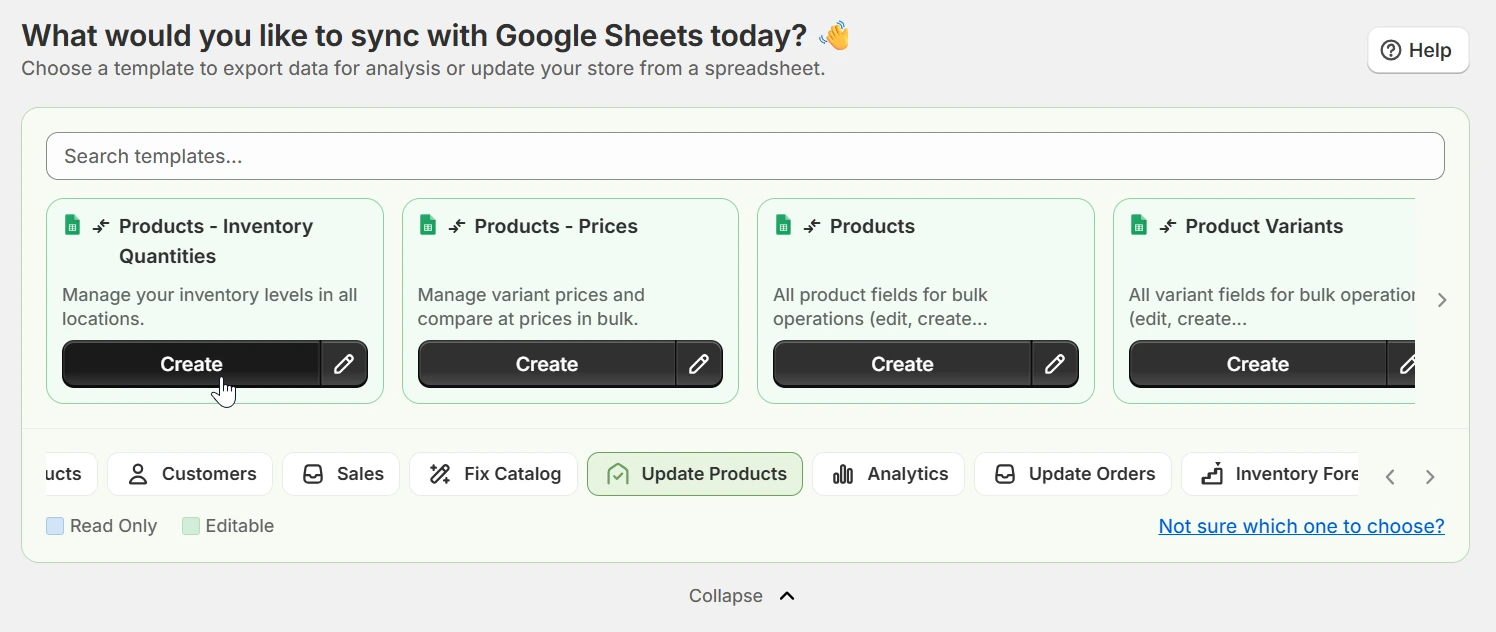
Choose which locations to include
eCommix detects every Shopify location automatically. In Manage Columns, tick which locations to add to your sheet - one column per location. Warehouse, retail store, 3PL, or fulfilment centre: they all appear as separate, editable columns side by side.
Update inventory from Google Sheets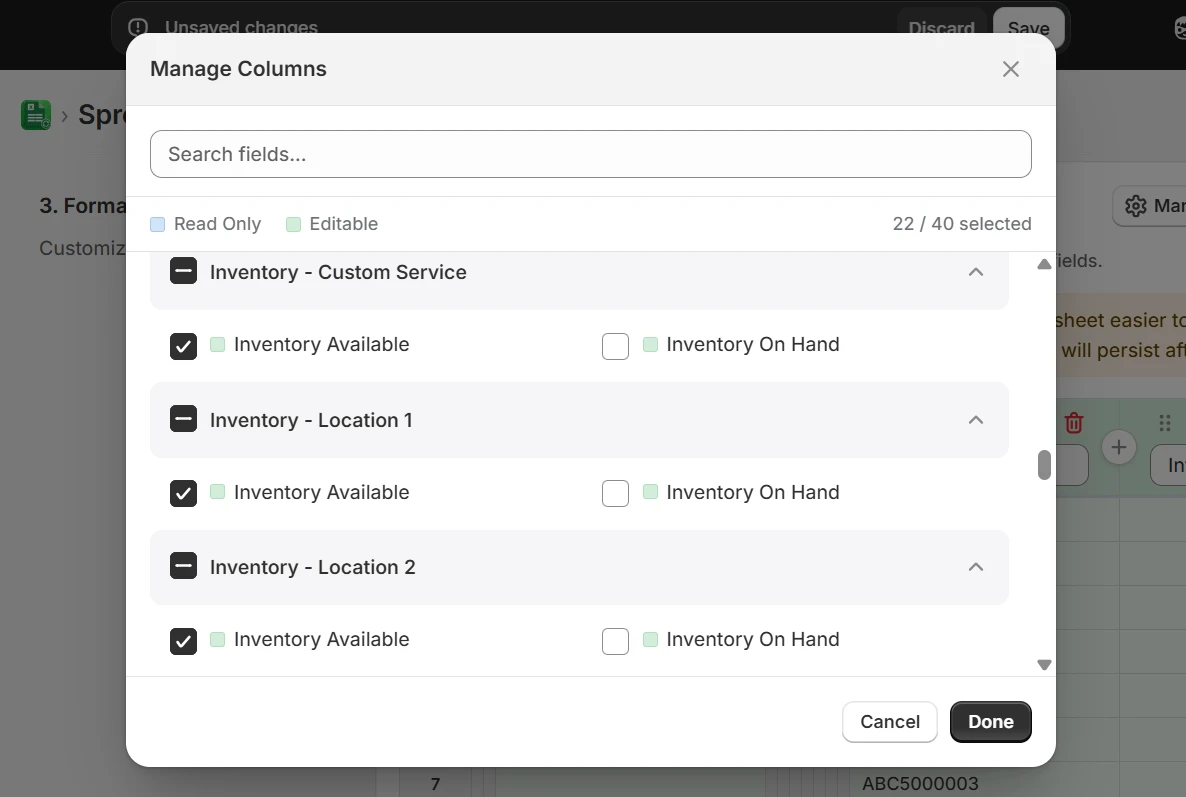
Preview the column layout before exporting
The Format Data step shows a live preview of your sheet: Title, SKU, and one Inventory Available column per location. Reorder, rename, or hide columns without touching the export. When the layout looks right, export to Google Sheets.
Update inventory from Google Sheets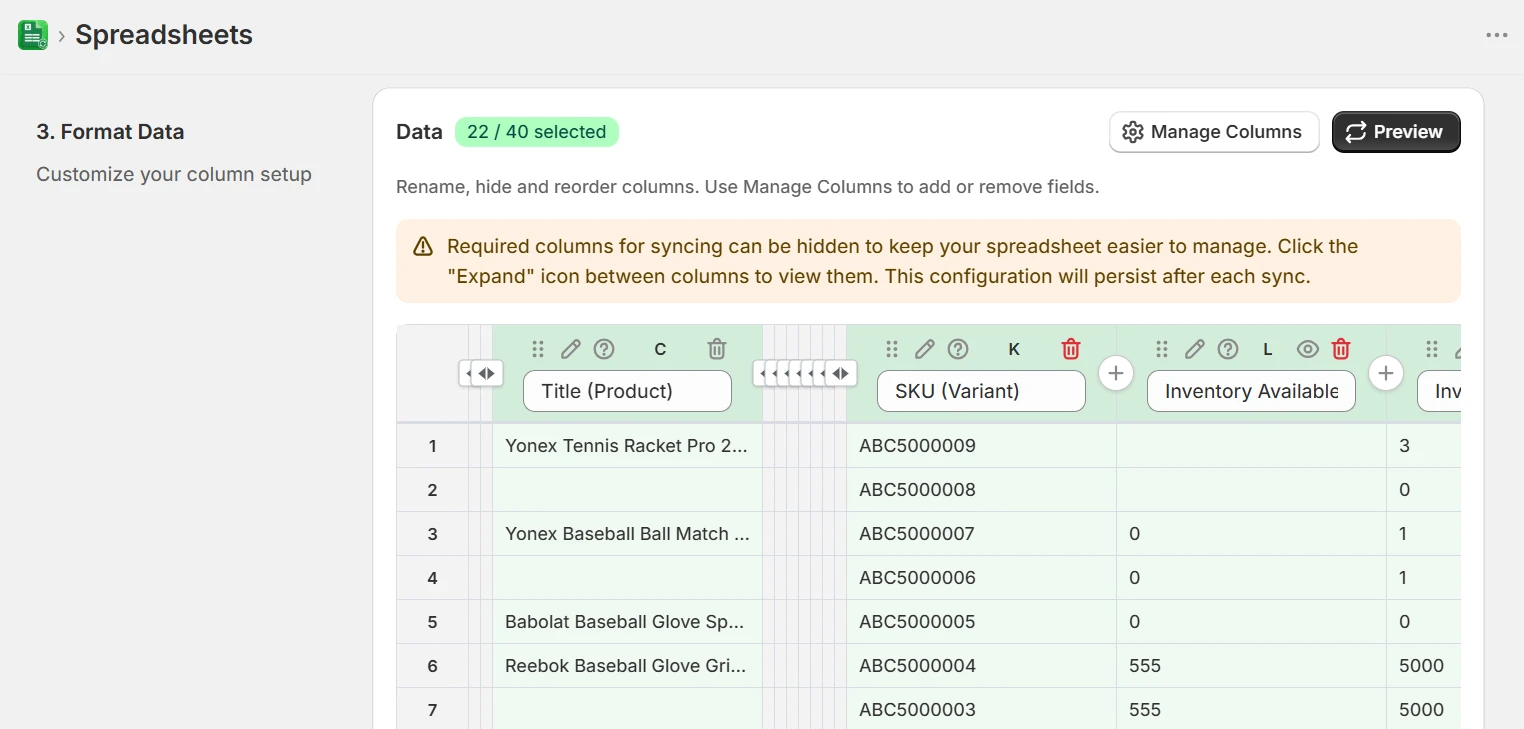
Edit quantities directly in the sheet
Your sheet lands with every variant as a row and every location as a column. Type new quantities, paste from a supplier file, or use Sheets formulas to adjust in bulk. Set a location to zero, top up a warehouse, or redistribute stock between sites - all in the same grid.
Update inventory from Google Sheets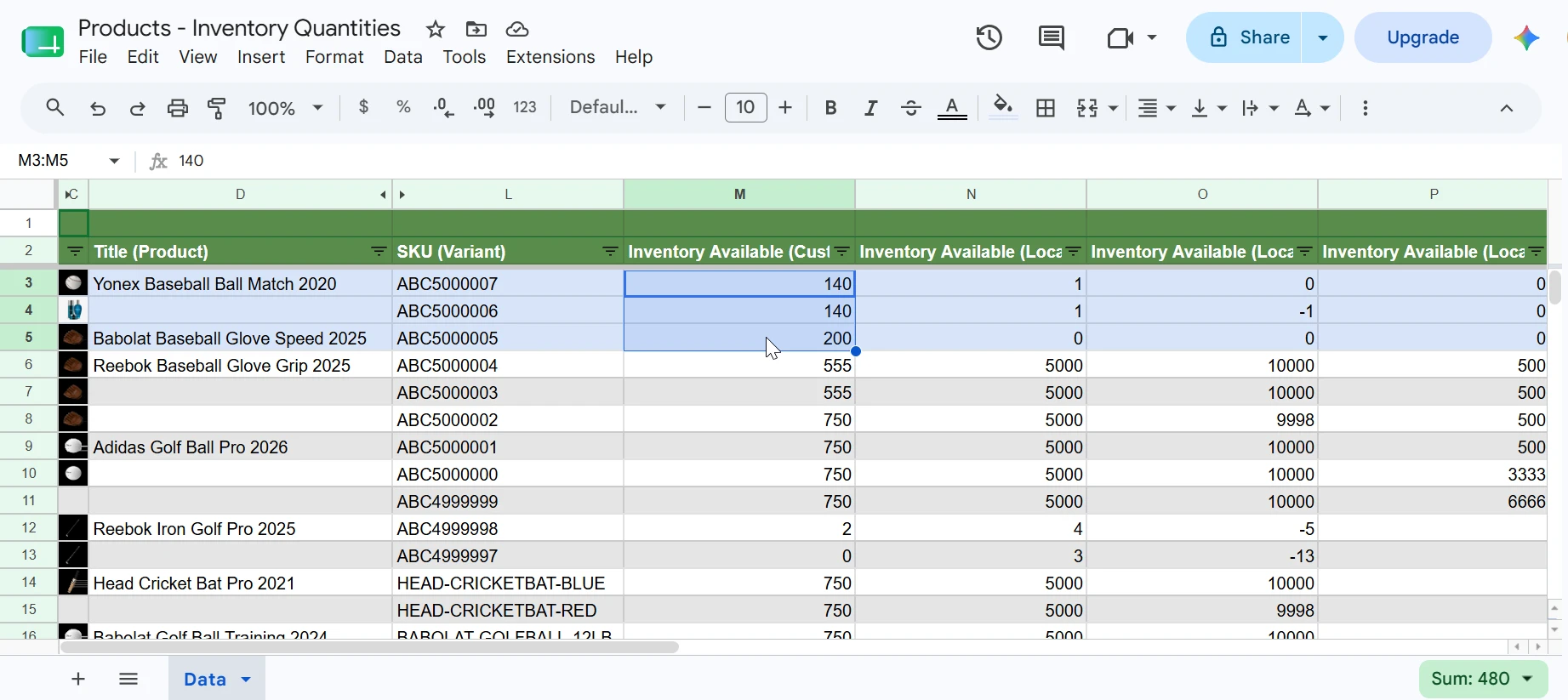
Sync back to Shopify in three steps
Return to eCommix, hit Export to refresh the sheet with the latest data, make your changes, then hit Import. eCommix validates every row and pushes only the changed quantities to Shopify. No overwriting untouched SKUs, no surprises.
Update inventory from Google Sheets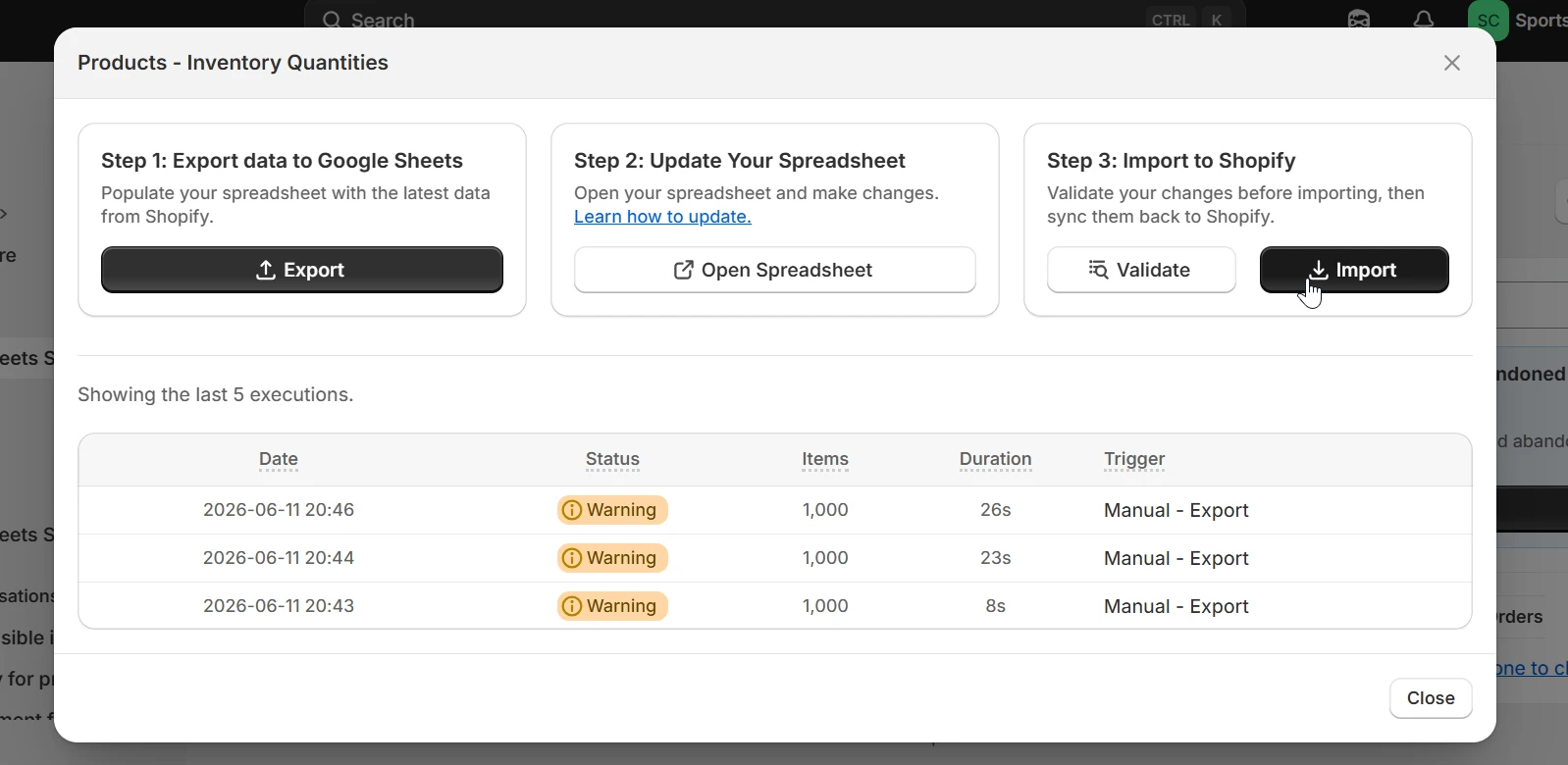
Pair with the Inventory Forecast Planner
Once your quantities are clean, use the Inventory Forecast Planner template to predict when each SKU will run out based on sales velocity. The planner pulls On Hand, Available, Committed, and Incoming - giving you reorder signals before stockouts happen.
Update inventory from Google Sheets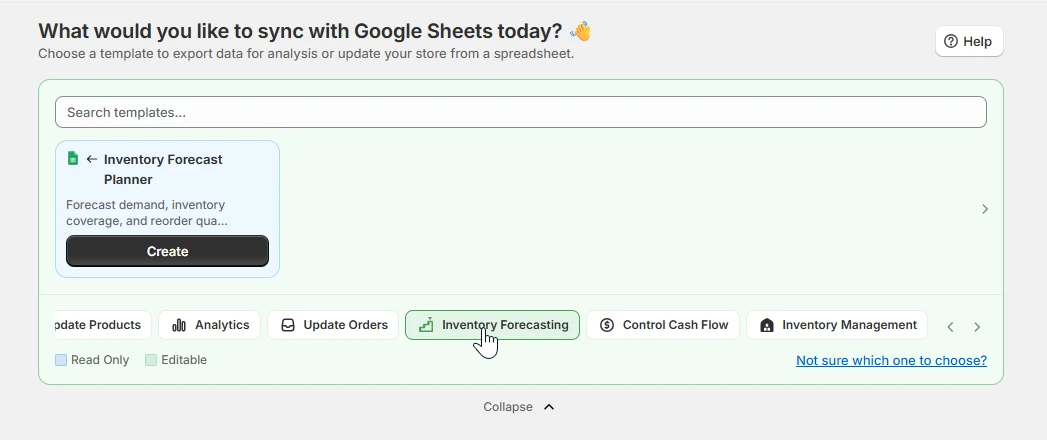
When to bulk-edit inventory
Any time updating stock one product at a time in Shopify admin would take longer than it should.
Post-delivery stock update
A supplier delivers 500 units to your warehouse. Open the sheet, find the SKUs, type the new quantities, import. Done in under two minutes instead of clicking through Shopify admin one product at a time.
Multi-location rebalancing
One store is overstocked, another is running low. See every location side by side in the sheet, redistribute quantities across the columns, and sync in one import.
Seasonal inventory reset
Before peak season, adjust safety stock and available quantities across your whole catalog in bulk. Sheets formulas let you apply percentage increases to entire columns at once.
3PL or warehouse onboarding
Adding a new fulfilment centre? eCommix adds a new column for the location automatically. Seed the initial quantities in the sheet, import once, and you're live.
Stockout prevention
Filter for rows where Available drops below a threshold using Sheets conditional formatting. Fix the quantities, import, and pair with the Forecast Planner to set up reorder alerts.
Inventory audit reconciliation
After a physical count, paste the actual quantities into the sheet alongside the Shopify values. Use a formula to spot discrepancies, correct them, and import only the rows that changed.
Stock formulas worth keeping in the sheet
Once quantities live in a spreadsheet, the checks you would otherwise do by eye become a column. Column C is an Inventory Available column.
Flag anything below a reorder point
=IF(C2<10, "REORDER", "")C is an Inventory Available column. Sort or filter by the flag to get your reorder list in one place.
Total stock across every location
=SUM(C2:F2)With one column per location, the row total is your true on-hand position across the whole business.
Increase stock by a percentage
=ROUND(C2*1.2, 0)Seasonal top-ups across a catalog. ROUND to zero decimals - Shopify quantities are whole units.
Spot a count discrepancy after a stocktake
=C2-G2Paste the physical count into a spare column G. Non-zero results are exactly the rows worth investigating.
Rebalance between two locations
=IF(C2>20, C2-10, C2)Pull ten units from any overstocked location, then add the same to the destination column and import both changes together.
Catch negative or blank quantities
=IF(OR(C2<0, C2=""), "CHECK", "")Run this before every import. A blank cell and a zero mean different things, and this catches both before they reach Shopify.
Only Available is written back to Shopify. On Hand, Committed, and Incoming export so your formulas can read them, but editing those columns changes the sheet and not the store.
Frequently asked questions
Can I update inventory for multiple locations at once?
Yes. eCommix creates one editable column per Shopify location. You can update quantities for every location in the same import - no need to run separate syncs per location.
Which inventory fields can I edit?
Available is editable (the quantity available for sale). On Hand, Committed, Incoming, Reserved, Damaged, Quality Control, and Safety Stock are also exported so you have the full picture, though only Available can be written back via the two-way sync.
Will importing overwrite stock I didn't change?
No. eCommix only writes back cells you actually edited. If you changed 10 SKUs out of 1,000 rows, only those 10 SKUs are updated in Shopify. The rest are untouched.
Can I filter the export to a specific location or product type?
Yes. When configuring the export you can filter by location, vendor, product type, collection, or any other criteria to keep the sheet focused on what you need.
What is the Inventory Forecast Planner?
It's a separate eCommix template that uses your sales history and current stock levels to predict when each SKU will run out and suggest reorder quantities. It works alongside the Inventory Quantities template - use one to manage stock, the other to plan ahead.
Is there a limit to how many SKUs I can update?
There's no hard limit. Large catalogs export with automatic pagination. You can also scope the sheet to a subset of your catalog using filters.
How do I get alerted when a SKU drops below a stock threshold?
Schedule the Inventory Quantities export to run hourly or daily so the sheet always holds current stock levels. Then add a threshold formula in a spare column - for example =IF(Available<10,"REORDER","") - and use Google Sheets' built-in notification rules, or a short Apps Script trigger, to send the alert by email, Slack, or SMS through a provider such as Twilio. eCommix keeps the stock numbers current and does not send messages itself; the alerting is whatever you attach on the Sheets side.
Does the inventory sync run in real time when stock changes?
No. Inventory exports run on a schedule, with hourly as the shortest interval, rather than firing on a Shopify inventory event. A SKU can therefore sit below its threshold for up to an hour before the sheet reflects it. That is fine for weekly reorder reviews and daily stock reports, but it is not the right approach if you need instant stockout alerting. Real-time event triggers in eCommix cover order events, not inventory levels.
Can I set up automatic reordering from the spreadsheet?
eCommix does not place purchase orders, but because current stock sits in a live sheet you can build the reorder workflow around it - flag low SKUs with a formula, review them on a weekly cadence, and keep the reorder list in the same file. For predicting when a SKU will run out rather than just catching it after the fact, use the Inventory Forecast Planner template.
How do I bulk enable inventory tracking on products?
Inventory Tracked is an editable variant field. Add it to your sheet through Manage Columns, or start from the Products - Find and Fix Missing Data template, which includes Inventory Tracked and Inventory Policy alongside the rest of the variant fields. Set the column to TRUE for every variant that needs tracking and import. This matters because a variant with tracking off does not decrement stock on a sale, so its quantity never moves no matter how many times you update it.
How is this different from a Shopify inventory CSV export?
The Shopify CSV is a one-off download: you edit the file and re-upload the whole thing, which rewrites every row and offers no preview of the change. eCommix keeps the same sheet connected to the store - re-export to refresh it, and on import only the cells you actually edited are written back. Each location is its own column in the same sheet rather than a separate file, and Google Sheets formulas run directly against the live numbers.
How do I move stock between locations in bulk?
Every location is a separate column in the same row, so a transfer is two edits on one line: subtract the units from the source location column and add them to the destination. Do it with formulas down the whole column to rebalance many SKUs at once, then import - both location changes are written in the same sync. Check that the row total still matches before importing, since nothing stops you from typing a transfer that creates or loses units.
Why is my inventory quantity not changing after an import?
The usual cause is that the variant has inventory tracking turned off, in which case Shopify does not hold a quantity to update. Add the Inventory Tracked column to your sheet and confirm it is TRUE for those SKUs. The other common cause is editing a read-only column: only Available is written back, so typing into On Hand, Committed, or Incoming changes the sheet but not Shopify.
Stop updating stock one SKU at a time
Free plan available. Works with any Shopify store.
Update inventory from Google Sheets