Bulk edit Shopify product fields in Google Sheets
Tags, product types, vendors, collections, SEO titles, and alt text - export them to a spreadsheet, edit hundreds of rows with find-and-replace or a formula, and sync it all back in one import.
Free plan available
How do you bulk edit Shopify product tags and fields?
Install eCommix from the Shopify App Store, export your products to Google Sheets with the fields you want to change, edit them in the spreadsheet, then Import to push the changes back. Tags, product type, vendor, collections, status, SEO title and description, barcode, weight, and image alt text are all editable in bulk.
The advantage over the Shopify admin is the spreadsheet itself: find-and-replace across a whole tag column, fill-down formulas for SEO titles, and a visible diff of every edited cell before anything is written. eCommix imports only the cells you changed, so untouched rows stay exactly as they were.
Which fields you can edit
Product, variant, and image fields - all editable in the same sheet and pushed back in a single import.
Tags, Product Type, Category, Vendor, Collections, Status
Title, Description (body HTML), Option names, Template suffix
SEO Title, SEO Description, Image Alt Text, Handle
SKU, Barcode, Price, Compare-at price, Cost per item
Weight and unit, Requires shipping, Taxable, HS code, Country of origin
Image source, Position, Alt text, Variant image assignment
Looking for Google Shopping feed fields? eCommix exports 39 Google Merchant fields for review and auditing, but they are read-only - you bulk edit the Shopify product fields underneath them instead.
Start from the Products template
Choose the Products template - all product fields, built for bulk operations - then open Manage Columns and tick just what you need: Tags, Type, Vendor, Collections, SEO Title, SEO Description, Status. The sheet arrives holding only the columns you plan to touch.
Bulk edit product fields in Google Sheets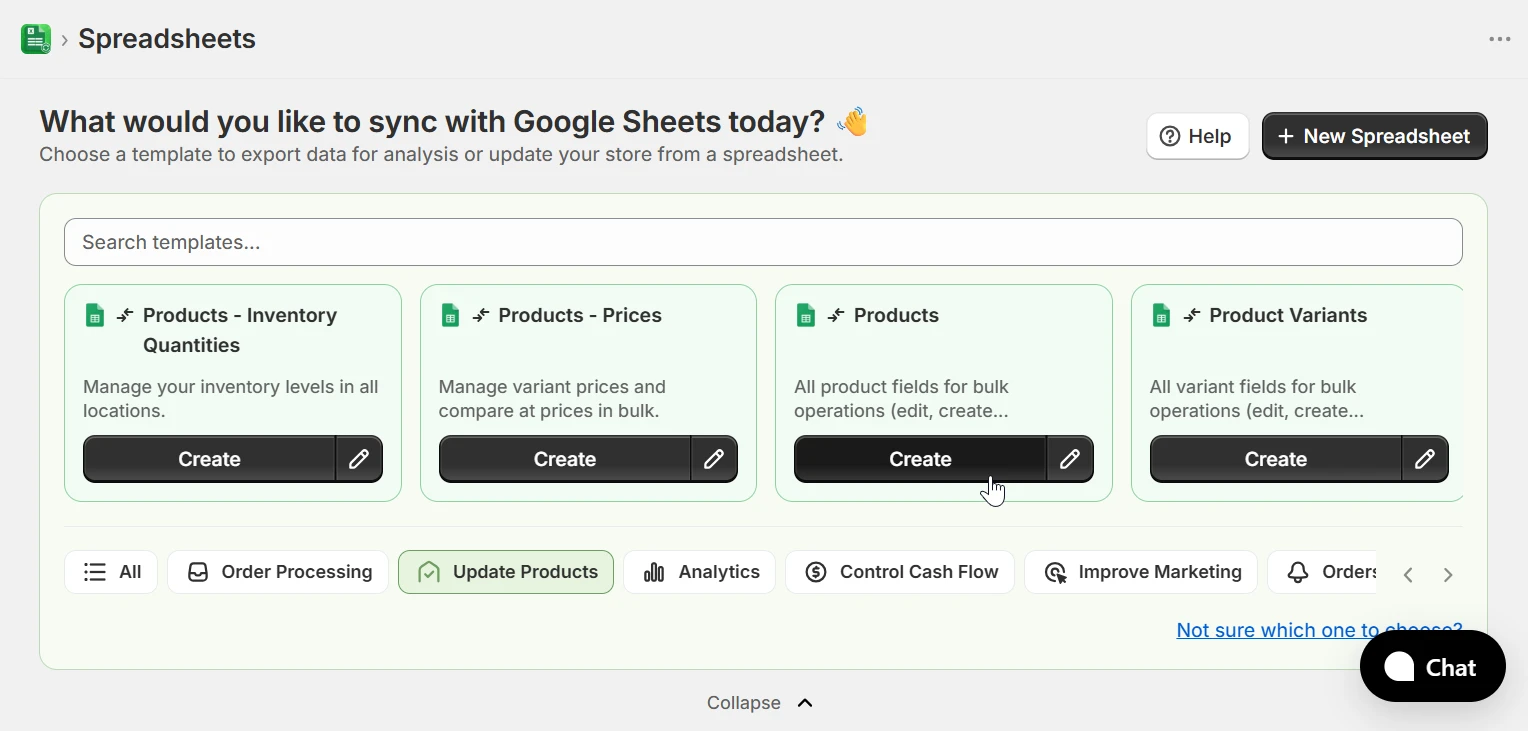
Filter down to the products you are editing
Scope the export by vendor, collection, product type, tag, or status before it runs. Retagging one supplier's catalog or fixing SEO on a single collection means those rows and no others, so a fill-down formula cannot reach a product you did not intend to change.
Bulk edit product fields in Google Sheets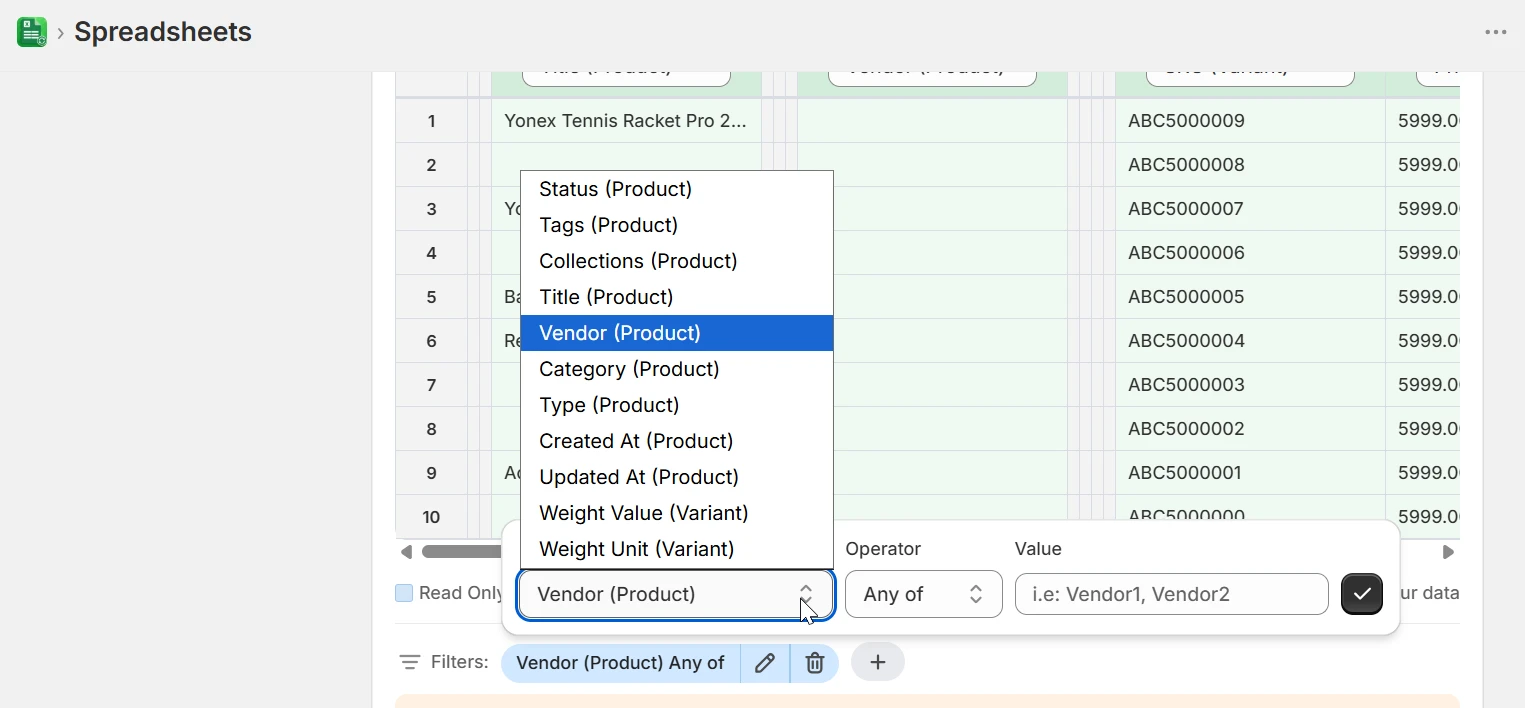
Edit in the sheet - find and replace, fill down, formulas
This is where a spreadsheet beats the Shopify admin. Find-and-replace a tag across 900 rows, build SEO titles with a formula that concatenates brand and product name, or paste a corrected type column straight from a supplier file. Edited cells are highlighted so you can see exactly what changed.
Bulk edit product fields in Google Sheets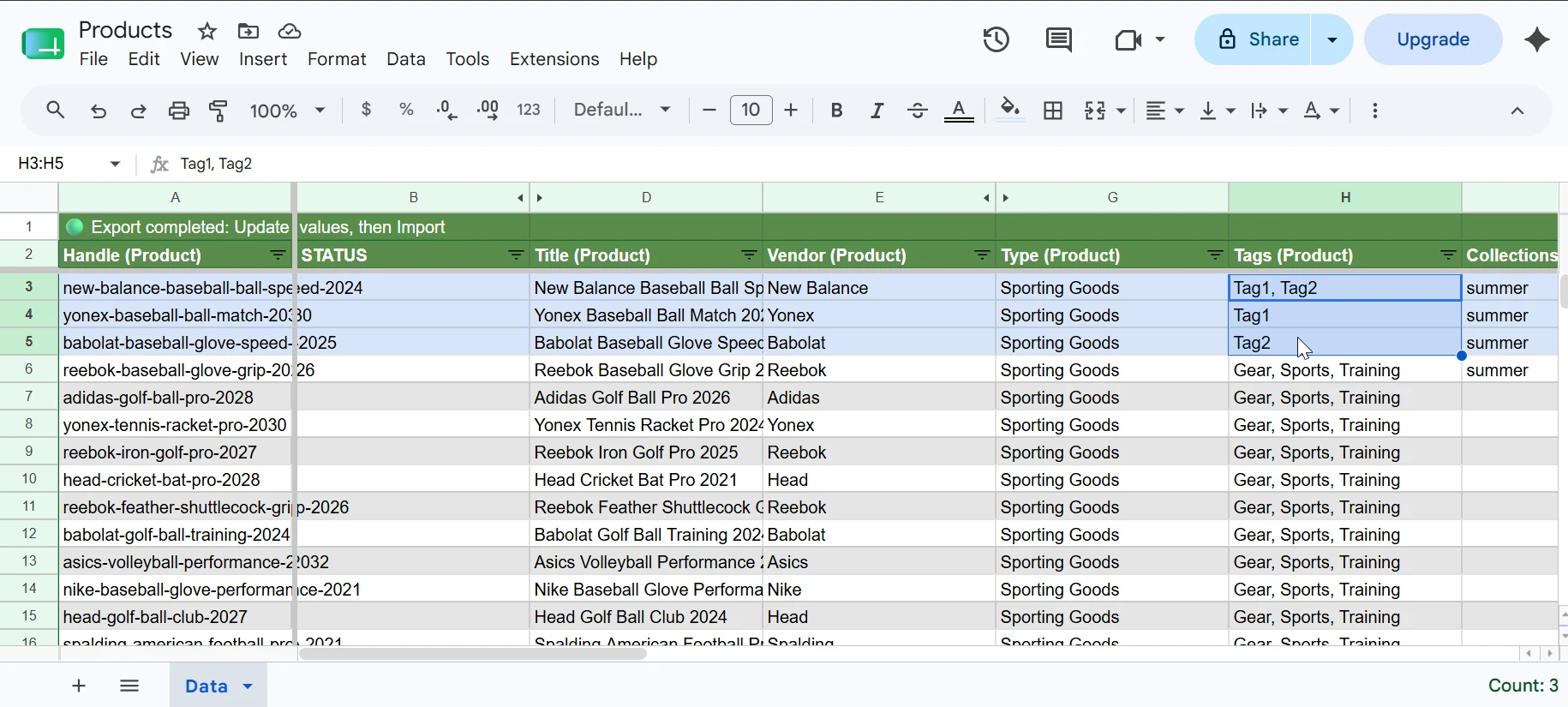
Validate, then push only what changed
eCommix checks every row before anything is written and reports the result per row in a STATUS column, so you can see what will be updated - and fix any problem rows - before committing. Only the cells you actually edited are sent to Shopify: change tags on 40 products out of 2,000 rows and the other 1,960 are never touched.
Bulk edit product fields in Google Sheets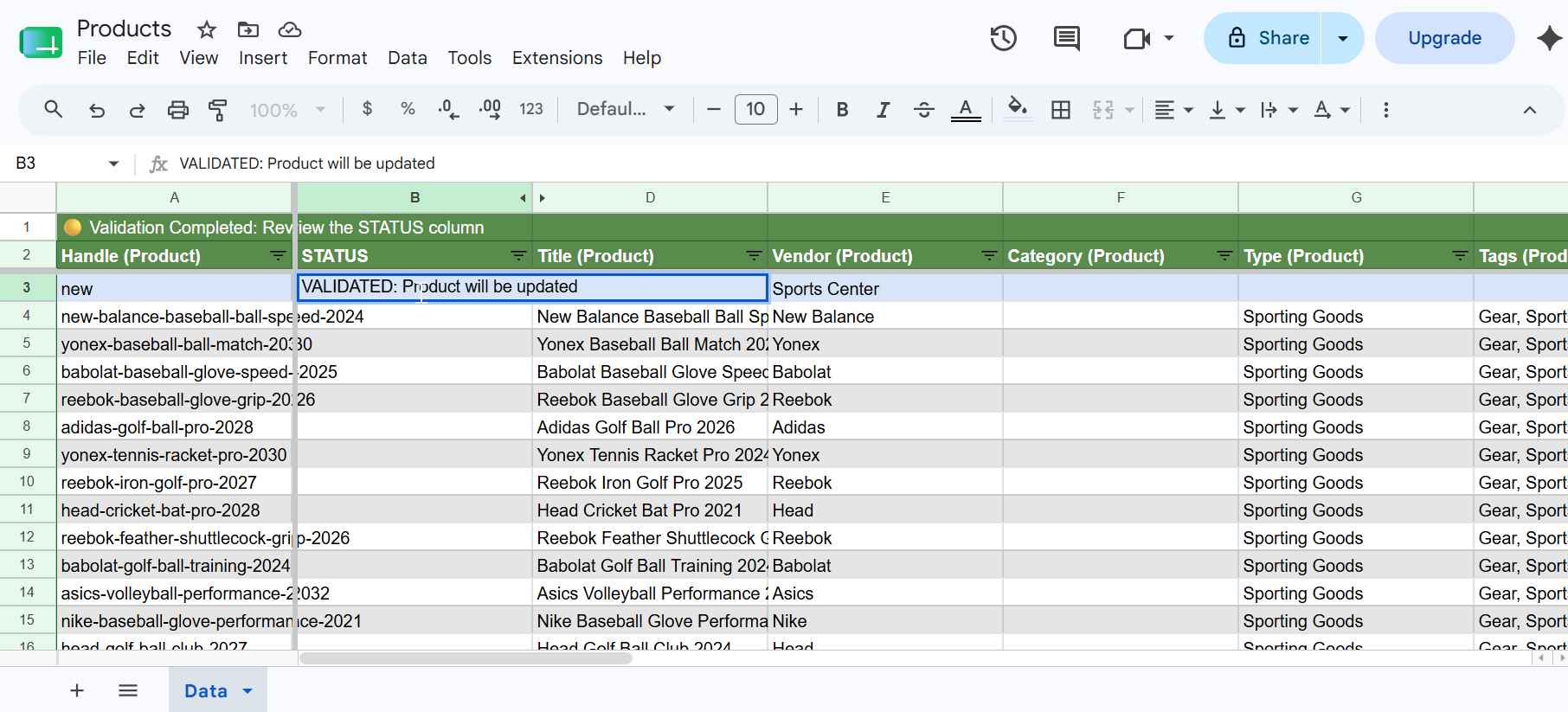
When to bulk edit product fields
Any change that touches more than a handful of products is faster in a spreadsheet.
Retag a whole catalog
Find-and-replace a deprecated tag across every product, or append a seasonal tag to one vendor's range. Tags drive collections, filters, and automations, so fixing them in bulk fixes everything downstream at once.
Fix product types and categories
Inconsistent product types break filtered navigation and reporting. Sort the column in Sheets, spot the variants of the same value, and normalise them all in a single import.
Bulk SEO title and description rewrites
Write a formula that builds SEO titles from brand, product name, and a keyword, apply it down the column, review the output, and push. Far faster than editing meta fields one product at a time.
Clean up image alt text
Missing alt text hurts accessibility and image search. Export image rows, generate alt text from the product title with a formula, and sync it back across the catalog.
Reassign vendors and collections
When a supplier changes name or you restructure collections, update the vendor or collection column in bulk instead of clicking through hundreds of product pages.
Prepare a catalog before launch
Set status, tags, type, and SEO fields for a new product line while it is still in draft, review the whole set in one sheet, then flip status to active in the same import.
Frequently asked questions
How do I bulk edit Shopify product tags?
Export your products with eCommix using the Products template and include the Tags (Product) column. Tags come through as a comma-separated list per product, so you can find-and-replace, append, or rewrite them across hundreds of rows in Google Sheets, then Import to push the changes back to Shopify. Only the rows you edited are updated.
Can I bulk edit Google Shopping fields with eCommix?
Not directly. eCommix has a Google Merchants template covering 39 feed fields - title, description, availability, price, GTIN, MPN, brand, condition, size, colour, and more - but it is export-only, so those feed values can be reviewed and audited in Sheets, not written back. What you can bulk edit are the underlying Shopify product fields the feed is built from, including title, description, product type, vendor, barcode, and price. Updating those and letting your feed regenerate is usually the intended workflow.
Which product fields can I edit in bulk?
Tags, Title, Description, Vendor, Product Type, Category, Collections, Status, Template Suffix, SEO Title, SEO Description, option names, and handles at the product level. At the variant level: SKU, Barcode, Price, Compare-at price, Cost per item, weight and unit, taxable, requires shipping, HS code, and country of origin. Image source, position, and alt text are editable too.
Will editing one column overwrite my other product data?
No. eCommix writes back only the cells you actually changed. Fields you did not include in the sheet are never touched, and rows you did not edit are skipped entirely.
Can I use find-and-replace on tags across the whole catalog?
Yes - that is one of the main reasons to do this in a spreadsheet. Google Sheets' find-and-replace works across the whole Tags column at once, which the Shopify admin cannot do. Review the result in the sheet before importing.
How do I undo a bulk edit that went wrong?
Keep a copy of the sheet before you start editing. Because eCommix only writes changed cells, re-importing the original sheet restores the previous values on exactly the rows that were modified.
Is there a limit on how many products I can edit at once?
No hard limit. Large catalogs export with automatic pagination, and imports are batched. Filtering the export is still worth doing - a smaller sheet is faster to work in and easier to review before pushing.
Stop editing products one at a time
Free plan available. No credit card. Works with any Shopify store.
Bulk edit product fields in Google Sheets